APIs
The Recognizer class operates on a list of actions defined in a configuration. Each action can then be executed using Recognizer.execute().
Different actions exist, mainly to retrieve information from screen pixels or to interact with the screen.
Actions can be piped together piped together and the screen area can be preprocessed.
Actions
ActionType defines the different kinds of operations that can be performed on screen data or user input.
- class guirecognizer.ActionType(*values)
Available action types.
- CLICK = 'click'
Click on the selected point.
- COMPARE_IMAGE_HASH = 'compareImageHash'
Compute the image hash of the area selection then compute the difference with the hash in reference.
- COMPARE_PIXEL_COLOR = 'comparePixelColor'
Compute the pixel color of the point selection or the average pixel color of the area selection then compute the difference with the pixel color in reference.
The difference is the average difference of the rgb colors. It’s always between 0 and 1.
- COORDINATES = 'coordinates'
Return the coordinates of a point or an area.
- FIND_IMAGE = 'findImage'
Find the locations of an image inside the selected area. Specify a detection threshold, the maximum number of locations and a resize interval to find the same image but a bit smaller or bigger.
- IMAGE_HASH = 'imageHash'
Compute the image hash of the area selection. The color is taken into account. Similar images generate close hashes.
More about image hashes: https://pypi.org/project/ImageHash .
- IS_SAME_IMAGE_HASH = 'isSameImageHash'
Compute the image hash of the area selection and compare it to the hash in reference.
- IS_SAME_PIXEL_COLOR = 'isSamePixelColor'
Compute the pixel color of the point selection or the average pixel color of the area selection and compare it to the pixel color in reference.
- NUMBER = 'number'
Try to recognize a number. Return None if no number has been recognized.
- PIXEL_COLOR = 'pixelColor'
Compute the pixel color of the point selection or the average pixel color of the area selection.
- SELECTION = 'selection'
Return point as a pixel or an area as an image.
- TEXT = 'text'
Try to recognize text. Return the empty string if no text has been recognized.
Even though the following examples define an action by giving a valid configuration using guirecognizer.recognizer.RecognizerData,
it’s best to create a configuration file with guirecognizerapp because the companion application helps create and preview actions.
Coordinates
Actions of type ActionType.COORDINATES return absolute screen coordinates computed from the action ratios and the defined borders.
From a point:
1from guirecognizer import ActionType, Recognizer
2
3recognizer = Recognizer({'borders': (0, 0, 50, 50), 'actions': [{'id': 'coord',
4    'type': ActionType.COORDINATES, 'ratios': (0.5, 0.5)}]})
5coord = recognizer.executeCoordinates('coord')
6print(coord)
(25, 25)
From an area selection:
1from guirecognizer import ActionType, Recognizer
2
3recognizer = Recognizer({'borders': (0, 0, 50, 50), 'actions': [{'id': 'coord',
4    'type': ActionType.COORDINATES, 'ratios': (0.2, 0.4, 0.6, 0.8)}]})
5coord = recognizer.executeCoordinates('coord')
6print(coord)
(10, 20, 30, 40)
Selection
Actions of type ActionType.SELECTION return either the color of a selected pixel (for point selections)
or a PIL.Image.Image (for area selections).
1from guirecognizer import ActionType, Recognizer
2
3recognizer = Recognizer({'borders': (0, 0, 50, 50), 'actions': [{'id': 'point',
4    'type': ActionType.SELECTION, 'ratios': (0.5, 0.5)}]})
5color = recognizer.executeSelection('point')
6print(color)
(218, 213, 214)
From an area selection:
1from guirecognizer import ActionType, Recognizer
2
3recognizer = Recognizer({'borders': (0, 0, 50, 50), 'actions': [{'id': 'area',
4    'type': ActionType.SELECTION, 'ratios': (0.2, 0.4, 0.6, 0.8)}]})
5image = recognizer.executeSelection('area')
6print(image)
<PIL.Image.Image image mode=RGB size=20x20 at 0x1F0BCA68A50>
Find images
Actions of type ActionType.FIND_IMAGE search for an image (or visually similar ones) inside a larger image and return the coordinates of the matches.
Here is an example. Let’s try to find the camera inside the following image from Where’s Wally?.
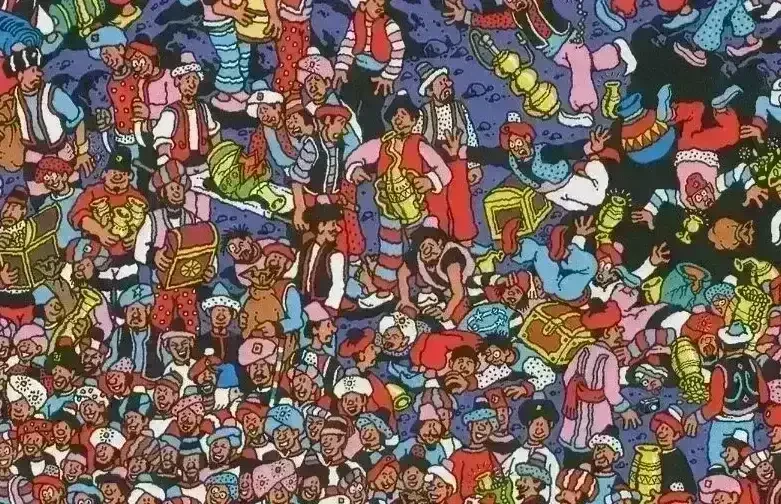
Let’s use guirecognizer to find the camera inside this image. Let’s call this file wallyExcerpt.webp.
Here is the camera we are looking for.
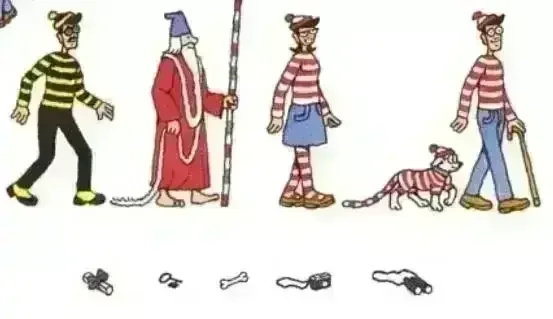
The camera to find among other things.
The most convenient way is to define the action with guirecognizerapp. Without guirecognizerapp, we can manually extract an area of pixels representing the camera.

A subsection of the camera. Let’s call this file wallyCamera.webp.
Then we are going to find a similar area of pixels inside the image wallyExcerpt.webp.
You may need to install pillow to follow the example.
(venv) $ pip install pillow
 1import base64
 2from io import BytesIO
 3from guirecognizer import ActionType, Recognizer
 4from PIL import Image
 5
 6excerpt = Image.open('wallyExcerpt.webp')
 7camera = Image.open('wallyCamera.webp')
 8
 9# Convert the camera image to a correct format.
10buffered = BytesIO()
11camera.save(buffered, format='PNG')
12imageToFind = base64.b64encode(buffered.getvalue()).decode('utf-8')
13
14recognizer = Recognizer({'borders': (0, 0, excerpt.width, excerpt.height), 'actions': [{'id': 'find',
15    'type': ActionType.FIND_IMAGE, 'ratios': (0, 0, 1, 1), 'imageToFind': imageToFind, 'maxResults': 1, 'threshold': 15}]})
16coords = recognizer.executeFindImage('find', screenshot=excerpt)
17print(coords)
[(639, 398, 660, 411)]
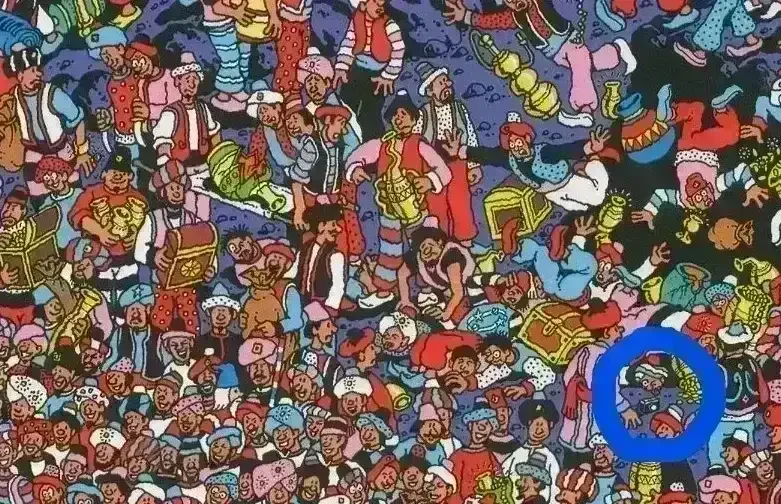
The camera is found following the coordinates. It’s circled in blue.
Three parameters are available: guirecognizer.recognizer.ActionData.maxResults, guirecognizer.recognizer.ActionData.threshold and guirecognizer.recognizer.ActionData.resizeInterval.
Pixel color
Actions of type ActionType.PIXEL_COLOR return the color of the selected pixel or the average color of the selected area.
1from guirecognizer import ActionType, Recognizer
2
3recognizer = Recognizer({'borders': (0, 0, 50, 50), 'actions': [{'id': 'color',
4    'type': ActionType.PIXEL_COLOR, 'ratios': (0.5, 0.5)}]})
5color = recognizer.executePixelColor('color')
6print(color)
(97, 96, 101)
Actions of type ActionType.COMPARE_PIXEL_COLOR return the difference between the color of the selected pixel (or the average color of the selected area)
and the color reference. The returned difference is a float between 0 and 1, where 0 means identical colors and higher values indicate greater differences.
1from guirecognizer import ActionType, Recognizer
2
3recognizer = Recognizer({'borders': (0, 0, 50, 50), 'actions': [{'id': 'compareColor',
4    'type': ActionType.COMPARE_PIXEL_COLOR, 'ratios': (0.5, 0.5), 'pixelColor': (100, 100, 100)}]})
5diff = recognizer.executeComparePixelColor('compareColor')
6print(diff)
0.01045751633986928
Actions of type ActionType.IS_SAME_PIXEL_COLOR return whether the difference between the color of the selected pixel (or the average color of the selected area)
and the color reference is 0.
1from guirecognizer import ActionType, Recognizer
2
3recognizer = Recognizer({'borders': (0, 0, 50, 50), 'actions': [{'id': 'isSameColor',
4    'type': ActionType.IS_SAME_PIXEL_COLOR, 'ratios': (0.5, 0.5), 'pixelColor': (100, 100, 100)}]})
5isSame = recognizer.executeIsSamePixelColor('isSameColor')
6print(isSame)
False
Image hash
Actions of type ActionType.IMAGE_HASH return an image hash of the selected area.
Two visually similar images produce hashes with a small difference. Color information is taken into account when computing the hash.
It uses https://pypi.org/project/ImageHash.
1from guirecognizer import ActionType, Recognizer
2
3recognizer = Recognizer({'borders': (0, 0, 50, 50), 'actions': [{'id': 'imageHash',
4    'type': ActionType.IMAGE_HASH, 'ratios': (0.2, 0.4, 0.3, 0.8)}]})
5imageHash = recognizer.executeImageHash('imageHash')
6print(imageHash)
f852add897319465,07000000000
Actions of type ActionType.COMPARE_IMAGE_HASH return the difference between the image hash of the selected area and the image hash reference.
The difference is a positive integer.
1from guirecognizer import ActionType, Recognizer
2
3recognizer = Recognizer({'borders': (0, 0, 50, 50), 'actions': [{'id': 'compareImageHash',
4    'type': ActionType.COMPARE_IMAGE_HASH, 'ratios': (0.2, 0.4, 0.3, 0.8), 'imageHash': 'f852add897319465,07000000001'}]})
5diff = recognizer.executeCompareImageHash('compareImageHash')
6print(diff)
39
Usually a difference of 10 or below means the two images are very similar.
Actions of type ActionType.IS_SAME_IMAGE_HASH return whether the difference between the image hash of the selected area and the image hash reference is 0.
1from guirecognizer import ActionType, Recognizer
2
3recognizer = Recognizer({'borders': (0, 0, 50, 50), 'actions': [{'id': 'isSameImageHash',
4    'type': ActionType.IS_SAME_IMAGE_HASH, 'ratios': (0.2, 0.4, 0.3, 0.8), 'imageHash': 'f852add897319465,07000000001'}]})
5isSame = recognizer.executeIsSameImageHash('isSameImageHash')
6print(isSame)
False
Text
Actions of type ActionType.TEXT return the recognized text, or an empty string if no text was detected.
It uses an optical character recognition library. The supported OCR libraries are listed in the section below.
As an example let’s retrieve the text from the following image. Install one of the available OCRs.
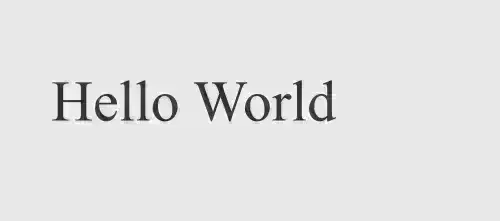
Use guirecognizer to retrieve the text inside this image. Let’s call this file textExample.webp.
1from guirecognizer import ActionType, Recognizer
2
3imagePath = 'textExample.webp'
4recognizer = Recognizer({'borders': (0, 0, 500, 221), 'actions': [{'id': 'text',
5    'type': ActionType.TEXT, 'ratios': (0.1, 0.1, 0.9, 0.9)}]})
6text = recognizer.executeText('text', screenshotFilepath=imagePath)
7print(text)
Hello World
Number
Actions of type ActionType.NUMBER return a float, or None if no number was detected.
It uses an optical character recognition library. The supported OCR libraries are listed in the section below.
As an example let’s retrieve the number from the following image. Install one of the available OCRs.
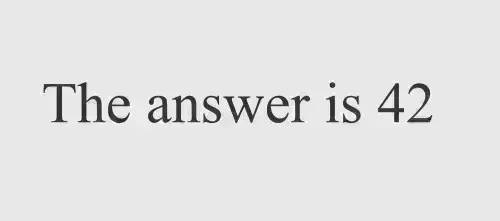
Use guirecognizer to retrieve the number inside this image. Let’s call this file numberExample.webp.
1from guirecognizer import ActionType, Recognizer
2
3imagePath = 'numberExample.webp'
4recognizer = Recognizer({'borders': (0, 0, 500, 221), 'actions': [{'id': 'number',
5    'type': ActionType.NUMBER, 'ratios': (0.7, 0.1, 0.9, 0.9)}]})
6number = recognizer.executeNumber('number', screenshotFilepath=imagePath)
7print(number)
42.0
Recognizer class
- class guirecognizer.Recognizer(data=None)
- __init__(data=None)
- Parameters:
data (
str|RecognizerData|None) – (optional) config filepath or config data- Raises:
RecognizerValueError – invalid data
- clearAllData()
Remove all data.
- Return type:
None
- execute(*args, expectedActionType=None, **kwargs)
- Overloads:
self, args (str | ActionType), expectedActionType (Literal[ActionType.COORDINATES]), kwargs (Unpack[ExecuteParams]) → Coord
self, args (str | ActionType), expectedActionType (Literal[ActionType.SELECTION]), kwargs (Unpack[ExecuteParams]) → Point | Image.Image
self, args (str | ActionType), expectedActionType (Literal[ActionType.FIND_IMAGE]), kwargs (Unpack[ExecuteParams]) → list[AreaCoord]
self, args (str | ActionType), expectedActionType (Literal[ActionType.CLICK]), kwargs (Unpack[ExecuteParams]) → None
self, args (str | ActionType), expectedActionType (Literal[ActionType.PIXEL_COLOR]), kwargs (Unpack[ExecuteParams]) → PixelColor
self, args (str | ActionType), expectedActionType (Literal[ActionType.COMPARE_PIXEL_COLOR]), kwargs (Unpack[ExecuteParams]) → int | float
self, args (str | ActionType), expectedActionType (Literal[ActionType.IS_SAME_PIXEL_COLOR]), kwargs (Unpack[ExecuteParams]) → bool
self, args (str | ActionType), expectedActionType (Literal[ActionType.IMAGE_HASH]), kwargs (Unpack[ExecuteParams]) → str
self, args (str | ActionType), expectedActionType (Literal[ActionType.COMPARE_IMAGE_HASH]), kwargs (Unpack[ExecuteParams]) → int
self, args (str | ActionType), expectedActionType (Literal[ActionType.IS_SAME_IMAGE_HASH]), kwargs (Unpack[ExecuteParams]) → bool
self, args (str | ActionType), expectedActionType (Literal[ActionType.TEXT]), kwargs (Unpack[ExecuteParams]) → str
self, args (str | ActionType), expectedActionType (Literal[ActionType.NUMBER]), kwargs (Unpack[ExecuteParams]) → float | None
self, args (str | ActionType), kwargs (Unpack[ExecuteParams]) → AnyActionReturnType
Return the result of the given action(s).
When many action ids or action types are specified, actions are executed as a pipeline.
- Parameters:
args (
str|ActionType) – Action ids or types. At least one must be given.expectedActionType (
ActionType|None) – Expected last action type or through reinterpret option. Raises an exception if wrong type.kwargs (
Unpack[ExecuteParams]) – Extra parameters, seeExecuteParams
- Returns:
The result of the last action in the pipeline.
If none of the parameters screenshot, screenshotFilepath, bordersImage and bordersImageFilepath is given, the screen is used when necessary.
With option reinterpret, the last action, if given by an id, is executed as if it was from the given type. An exception is raised if some parameters are missing.
The selected area can be preprocessed using the id of a defined preprocessing operation with option preprocessing.
- Raises:
No action id or type is specified
An action id is unknown
Could not open image from the borders filepath
Could not open image from the selected area filepath
One of the parameters is invalid
A needed parameter is missing while using an action type
Last action type is not the expected one
- executeClick(*args, **kwargs)
Wrapper with more precise type hinting for
execute().- Return type:
None
- executeCompareImageHash(*args, **kwargs)
Wrapper with more precise type hinting for
execute().- Return type:
int
- executeComparePixelColor(*args, **kwargs)
Wrapper with more precise type hinting for
execute().- Return type:
int|float
- executeCoordinates(*args, **kwargs)
Wrapper with more precise type hinting for
execute().- Return type:
Union[tuple[int,int],list[int],tuple[int,int,int,int],list[int]]
- executeFindImage(*args, **kwargs)
Wrapper with more precise type hinting for
execute().- Return type:
list[Union[tuple[int,int,int,int],list[int]]]
- executeImageHash(*args, **kwargs)
Wrapper with more precise type hinting for
execute().- Return type:
str
- executeIsSameImageHash(*args, **kwargs)
Wrapper with more precise type hinting for
execute().- Return type:
bool
- executeIsSamePixelColor(*args, **kwargs)
Wrapper with more precise type hinting for
execute().- Return type:
bool
- executeNumber(*args, **kwargs)
Wrapper with more precise type hinting for
execute().- Return type:
float|None
- executePixelColor(*args, **kwargs)
Wrapper with more precise type hinting for
execute().- Return type:
Union[tuple[int,int,int],list[int]]
- executeSelection(*args, **kwargs)
Wrapper with more precise type hinting for
execute().- Return type:
Union[tuple[int,int,int],list[int],int,tuple[int,int,int,int],Image]
- executeText(*args, **kwargs)
Wrapper with more precise type hinting for
execute().- Return type:
str
- getBordersImage()
- Raises:
RecognizerValueError – no borders data
- Return type:
Image
- loadData(data)
Load actions.
Can be called multiple times to load more data.
- Parameters:
data (
RecognizerData) – config data- Raises:
RecognizerValueError – invalid or incomplete data
- Return type:
None
- loadFilepath(filepath)
Load actions.
Can be called multiple times to load many files.
- Parameters:
filepath (
str) – config filepath- Raises:
RecognizerValueError – invalid json data
- Return type:
None
- setAllScreens(allScreens)
Set to True to grab all monitors when grabbing a screenshot.
- Parameters:
allScreens (
bool)- Return type:
None
- setEasyOcr(languages=['en'], gpu=False)
- Parameters:
languages (
list[str])gpu (
bool)
- Return type:
None
- setOcrOrder(ocrOrder)
- Parameters:
- Raises:
RecognizerValueError – invalid ocrOrder
- Return type:
None
- setTesseractOcr(tesseract_cmd=None, lang='eng', textConfig='--psm 7 --oem 3 -c tessedit_char_whitelist=ABCDEFGHIJKLMNOPQRSTUVWXYZ|0°@', numberConfig='--psm 8 --oem 3 -c tessedit_char_whitelist=0123456789oOQiIl|')
- Parameters:
tesseract_cmd (
str|None) – Filepath to tesseract.exe. If None, it tries to find the filepath which can take seconds or minutes.lang (
str)textConfig (
str)numberConfig (
str)
- Raises:
RecognizerValueError – Automatically finding tesseract.exe filepath failed.
- Return type:
None
- class guirecognizer.recognizer.ExecuteParams
Bases:
PipeInfoDictExtended keyword arguments for
guirecognizer.Recognizer.execute().- bordersImageFilepath: str
Filepath of the borders image.
- screenshotFilepath: str
Filepath of the screenshot.
- selectedAreaFilepath: str
Filepath of the selected area image.
- class guirecognizer.recognizer.PipeInfoDict
Optional arguments for pipeline execution.
- bordersImage: Image
Image of the borders area.
- clickPauseDuration: float
Pause duration of the click in seconds (default: 0.02).
- coord: tuple[int, int] | Annotated[list[int], 2] | tuple[int, int, int, int] | Annotated[list[int], 4]
Absolute coordinates.
- imageHash: str
Image hash value.
- imageHashDifference: int
Image hash difference.
- imageHashReference: str
Reference image hash value.
- nbClicks: int
Number of clicks (default: 1).
- pixelColor: tuple[int, int, int] | Annotated[list[int], 3]
RGB colors.
- pixelColorDifference: int | float
Difference between pixel colors.
- pixelColorReference: tuple[int, int, int] | Annotated[list[int], 3]
Reference RGB colors.
- preprocessing: str
ID of a preprocessing operation.
- reinterpret: ActionType
Reinterpret the last action as this type.
- screenshot: Image
Screenshot image to use instead of taking a live one.
- selectedArea: Image
Preselected image region.
- selectedPoint: tuple[int, int, int] | Annotated[list[int], 3] | int | tuple[int, int, int, int]
RGB colors with or without alpha, or grayscale value.
- exception guirecognizer.RecognizerValueError
Exception for invalid config data or action or preprocessing operation options.
Load actions
Create a configuration file using guirecognizerapp. Then load the actions when creating a Recognizer instance: Recognizer.__init__().
1from guirecognizer import Recognizer
2
3recognizer = Recognizer('config.json')
Then execute actions with Recognizer.execute() using their ids.
recognizer.execute('click')
Many options are available, as described in guirecognizer.recognizer.ExecuteParams, to specify the screenshot, the borders and other specific action options.
For type hinting support, use one of the methods execute… associated with the action type.
recognizer.executeClick('click')
It’s possible to load multiple config files with Recognizer.loadFilepath().
Pipe actions
Multiple actions can be executed in a chain.
For instance let’s have an action called getImageHash of type ActionType.IMAGE_HASH that computes the image hash
of a specific screen area. Let’s have a second action called isSameHash of type ActionType.IS_SAME_IMAGE_HASH that
returns whether it’s the same image hash as the one in reference. The action isSameHash points to a different screen area
than getImageHash. We want to test whether the screen area pointed by getImageHash has the correct image hash.
It’s possible to execute the two actions in chain.
isSame = recognizer.executeIsSameImageHash('getImageHash', 'isSameHash')
This is equivalent to the following two calls.
1hash = recognizer.executeImageHash('getImageHash')
2isSame = recognizer.executeIsSameImageHash('isSameHash', imageHash=hash)
An action can be specified just with its type instead of using the id of a defined action when all its necessary parameters are already present.
For instance let’s have an action called coord of type ActionType.COORDINATES that returns the coordinates of a point on screen.
We can click on the point with an action of type ActionType.CLICK without defining a new click action.
1from guirecognizer import ActionType
2
3recognizer.executeClick('coord', ActionType.CLICK)
Reinterpret
Sometimes you may have an action of a certain type but only want some elements of the action to be executed.
The parameter guirecognizer.recognizer.PipeInfoDict.reinterpret stops the execution of an action earlier.
The execution returns the result expected by the action type specified in reinterpret.
Here is an example. Let’s say we have an action of type ActionType.CLICK called click.
We want to retrieve the coordinates of the action click without actually clicking.
1from guirecognizer import ActionType
2
3coord = recognizer.executeClick('coord', reinterpret=ActionType.COORDINATES)
Manual configuration
This section documents the Python data structures used internally to represent configuration data. It’s still best to create a configuration file with guirecognizerapp instead because the companion application helps create and preview actions.
- class guirecognizer.recognizer.RecognizerData
Bases:
PreprocessingData- actions: Required[list[ActionData]]
- borders: Required[tuple[int, int, int, int] | Annotated[list[int], 4]]
- operations: list[OperationData]
- class guirecognizer.recognizer.ActionData
- id: Required[str]
- imageHash: str
- imageToFind: str
- maxResults: int
- pixelColor: tuple[int, int, int] | Annotated[list[int], 3]
- ratios: Required[tuple[float | int, float | int] | Annotated[list[float | int], 2] | tuple[float | int, float | int, float | int, float | int] | Annotated[list[float | int], 4]]
- resizeInterval: tuple[float | int, float | int] | Annotated[list[float | int], 2] | None
- threshold: int
- type: Required[ActionType | str]
- class guirecognizer.preprocessing.PreprocessingData
- operations: list[OperationData]
- class guirecognizer.preprocessing.OperationData
- id: str
- suboperations: list[GrayscaleSuboperationData | ColorMapSuboperationData | ThresholdSuboperationData | ResizeSuboperationData]
- class guirecognizer.preprocessing.GrayscaleSuboperationData
- type: Literal[PreprocessingType.GRAYSCALE]
- class guirecognizer.preprocessing.ColorMapSuboperationData
- colorMap: ColorMapData
- type: Literal[PreprocessingType.COLOR_MAP]
- class guirecognizer.preprocessing.ColorMapData
- difference: float
- inputColor1: tuple[int, int, int] | Annotated[list[int], 3]
- inputColor2: tuple[int, int, int] | Annotated[list[int], 3]
- method: ColorMapMethod | str
- outputColor1: tuple[int, int, int] | Annotated[list[int], 3]
- outputColor2: tuple[int, int, int] | Annotated[list[int], 3]
- class guirecognizer.preprocessing.ThresholdSuboperationData
- threshold: ThresholdData
- type: Literal[PreprocessingType.THRESHOLD]
- class guirecognizer.preprocessing.ThresholdData
- blockSize: int
- cConstant: float
- maxValue: int
- method: ThresholdMethod | str
- threshold: int
- thresholdType: ThresholdType | str
- class guirecognizer.preprocessing.ResizeSuboperationData
- resize: ResizeData
- type: Literal[PreprocessingType.RESIZE]
- class guirecognizer.preprocessing.ResizeData
- height: int
- method: ResizeMethod | str
- width: int
- class guirecognizer.PreprocessingType(*values)
Available preprocessing types.
- COLOR_MAP = 'colorMap'
- GRAYSCALE = 'grayscale'
- RESIZE = 'resize'
- THRESHOLD = 'threshold'
- class guirecognizer.ColorMapMethod(*values)
Color mapping methods.
- ONE_TO_ONE = 'oneToOne'
- RANGE_TO_ONE = 'rangeToOne'
- RANGE_TO_RANGE = 'rangeToRange'
- class guirecognizer.ThresholdMethod(*values)
Threshold methods.
- ADAPTIVE_GAUSSIAN = 'adaptiveGaussian'
- ADAPTIVE_MEAN = 'adaptiveMean'
- OTSU = 'otsu'
- SIMPLE = 'simple'
- class guirecognizer.ResizeMethod(*values)
Resize methods.
- FIXED_RATIO_HEIGHT = 'fixedRatioHeight'
The width is computed from the height and the ratio width/height of the image to process.
- FIXED_RATIO_WIDTH = 'fixedRatioWidth'
The height is computed from the width and the ratio width/height of the image to process.
- UNFIXED_RATIO = 'unfixedRatio'
Preprocessing
Preprocessing operations are applied after capturing a screen area and before the action-specific logic runs.
This is especially useful for ActionType.TEXT and ActionType.NUMBER because the preprocessing can help the OCR performance.
The parameter guirecognizer.recognizer.PipeInfoDict.preprocessing takes the string id of a defined preprocessing operation.
A preprocessing operation consists of a string id and one or more suboperations of type PreprocessingType.
The available suboperation types are described in the following subsections.
Here is an example. Let’s try to retrieve the text in this image.
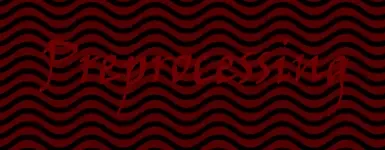
Image with a difficult text to identify by an OCR. Let’s call this file preprocessingExample.webp.
It’s more convenient to define a preprocessing operation with guirecognizerapp
but it’s also possible to pass a valid configuration with guirecognizer.recognizer.RecognizerData.
We define a preprocessing operation called myThreshold with one suboperation of type PreprocessingType.THRESHOLD.
We also define an action called text.
1from guirecognizer import (ActionType, OcrType, PreprocessingType, Recognizer,
2                          ThresholdMethod, ThresholdType)
3
4recognizer = Recognizer({'borders': (0, 0, 500, 200), 'actions': [{'id': 'text',
5    'type': ActionType.TEXT, 'ratios': (0.1, 0.1, 0.9, 0.9)},],
6    'operations': [{'id': 'myThreshold', 'suboperations': [{'type': PreprocessingType.THRESHOLD,
7    'threshold': {'method': ThresholdMethod.SIMPLE, 'threshold': 29, 'thresholdType': ThresholdType.TO_ZERO}}]}]})
8recognizer.setOcrOrder([OcrType.EASY_OCR])
Let’s see if the OCR can recognize the text.
1from PIL import Image
2
3image = Image.open('preprocessingExample.webp')
4text = recognizer.executeText('text', screenshot=image)
5print('Text:', text)
Text:
As expected the OCR did not manage to recognize the text.
Let’s see the image after applying the preprocessing operation we defined.
1preprocessedImage = recognizer.preprocessing.process(image, 'myThreshold')
2preprocessedImage.show()
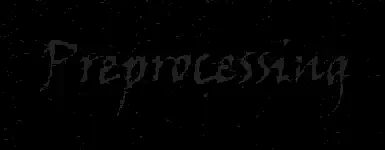
The image after applying the preprocessing operation myThreshold.
The text is more readable. The OCR has a better chance to work.
Pass the parameter guirecognizer.recognizer.PipeInfoDict.preprocessing to use the preprocessing operation myThreshold
directly without computing separately the preprocessed image.
1text = recognizer.executeText('text', screenshot=image, preprocessing='myThreshold')
2print('Text after preprocessing:', text)
Text after preprocessing: Preprocessing
The text is correctly recognized.
Grayscale
The grayscale suboperation converts the image into a gray monochrome.
Here is an example.
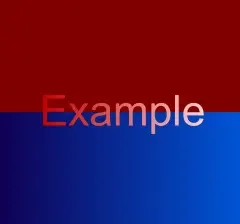
An image before applying grayscale.
 1from guirecognizer import PreprocessingType, Recognizer
 2from PIL import Image
 3
 4recognizer = Recognizer({'borders': (0, 0, 240, 224), 'actions': [],
 5    'operations': [{'id': 'myGrayscale', 'suboperations': [{'type': PreprocessingType.GRAYSCALE}]}]})
 6
 7image = Image.open('example.webp')
 8image.show()
 9
10preprocessedImage = recognizer.preprocessing.process(image, 'myGrayscale')
11preprocessedImage.show()
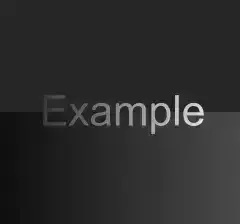
The image after applying grayscale.
Color map
The color map suboperation replaces a color or range of colors by another color or another range of colors: guirecognizer.preprocessing.ColorMapData.
In this example let’s replace the top red rectangle by the color black.
 1from guirecognizer import PreprocessingType, Recognizer
 2from PIL import Image
 3
 4recognizer = Recognizer({'borders': (0, 0, 240, 224), 'actions': [],
 5    'operations': [{'id': 'myColorMap', 'suboperations': [{
 6    'type': PreprocessingType.COLOR_MAP, 'colorMap': {'inputColor1': (128, 0, 0), 'outputColor1': (0, 0, 0)}}]}]})
 7
 8image = Image.open('example.webp')
 9image.show()
10
11preprocessedImage = recognizer.preprocessing.process(image, 'myColorMap')
12preprocessedImage.show()
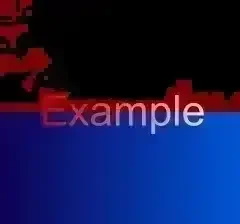
The image after applying the color map suboperation.
Some red pixels were not converted into black. Those pixels are not exactly equal to the input color.
We can increase the value of guirecognizer.preprocessing.ColorMapData.difference.
 1from guirecognizer import PreprocessingType, Recognizer
 2from PIL import Image
 3
 4recognizer = Recognizer({'borders': (0, 0, 240, 224), 'actions': [],
 5    'operations': [{'id': 'myColorMap', 'suboperations': [{
 6    'type': PreprocessingType.COLOR_MAP, 'colorMap': {'inputColor1': (128, 0, 0), 'outputColor1': (0, 0, 0), 'difference': 0.07}}]}]})
 7
 8image = Image.open('example.webp')
 9image.show()
10
11preprocessedImage = recognizer.preprocessing.process(image, 'myColorMap')
12preprocessedImage.show()
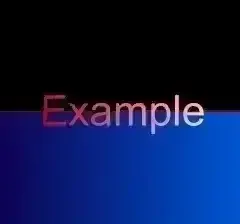
The image after applying the color map suboperation with a less strict difference.
More red pixels are converted into black.
In this example let’s replace the bottom blue rectangle by a range of green.
 1from guirecognizer import ColorMapMethod, PreprocessingType, Recognizer
 2from PIL import Image
 3
 4recognizer = Recognizer({'borders': (0, 0, 240, 224), 'actions': [],
 5    'operations': [{'id': 'myColorMap', 'suboperations': [{
 6    'type': PreprocessingType.COLOR_MAP, 'colorMap': {'inputColor1': (16, 0, 83), 'inputColor2': (0, 84, 213),
 7    'method': ColorMapMethod.RANGE_TO_RANGE, 'outputColor1': (0, 210, 0), 'outputColor2': (0, 120, 0), 'difference': 0.07}}]}]})
 8
 9image = Image.open('example.webp')
10image.show()
11
12preprocessedImage = recognizer.preprocessing.process(image, 'myColorMap')
13preprocessedImage.show()
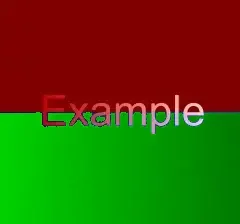
The image after applying a color map suboperation on a range of colors.
Threshold
The threshold suboperation applies a color thresholding returning a black and white image depending of the method used: guirecognizer.preprocessing.ThresholdData.
More information is available in the OpenCV image thresholding documentation:
https://docs.opencv.org/4.x/d7/d4d/tutorial_py_thresholding.html.
Here is an example trying to isolate the word Example.
 1from guirecognizer import PreprocessingType, Recognizer, ThresholdMethod
 2from PIL import Image
 3
 4recognizer = Recognizer({'borders': (0, 0, 240, 224), 'actions': [],
 5    'operations': [{'id': 'myThreshold', 'suboperations': [{
 6    'type': PreprocessingType.THRESHOLD, 'threshold': {'method': ThresholdMethod.ADAPTIVE_MEAN}}]}]})
 7
 8image = Image.open('example.webp')
 9image.show()
10
11preprocessedImage = recognizer.preprocessing.process(image, 'myThreshold')
12preprocessedImage.show()
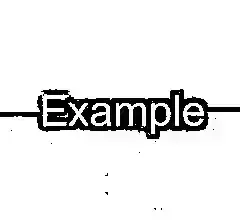
The image after applying a threshold suboperation.
Resize
The resize suboperation resizes the image with or without keeping the same aspect ratio: guirecognizer.preprocessing.ResizeData.
Here is an example where the image is resized by reducing the width while keeping the same aspect ratio.
 1from guirecognizer import PreprocessingType, Recognizer, ResizeMethod
 2from PIL import Image
 3
 4recognizer = Recognizer({'borders': (0, 0, 240, 224), 'actions': [],
 5    'operations': [{'id': 'myResize', 'suboperations': [{
 6    'type': PreprocessingType.RESIZE, 'resize': {'method': ResizeMethod.FIXED_RATIO_WIDTH, 'width': 30}}]}]})
 7
 8image = Image.open('example.webp')
 9image.show()
10
11preprocessedImage = recognizer.preprocessing.process(image, 'myResize')
12preprocessedImage.show()

The image after applying a resize suboperation.
OCRs
Two optical character recognition libraries are supported by guirecognizer: EasyOCR and tesseract.
If multiple OCRs are installed, it’s possible to use multiple OCRs as fallbacks.
For instance when trying to identify a text on an image
with ActionType.TEXT, if the first OCR in the list fails to retrieve some text, the second OCR will be used.
If the first OCR retrieves any text, the second OCR is not used.
Define the list of OCRs and their order with Recognizer.setOcrOrder().
By default guirecognizer tries to use EasyOCR then tesseract.
Here is an example which sets tesseract as the only OCR.
1from guirecognizer import OcrType
2
3recognizer.setOcrOrder([OcrType.TESSERACT])
When actions are previewed with guirecognizerapp, if the OCR settings have been changed, it’s important to adapt the OCR configuration again with guirecognizer. The configuration file produced by guirecognizerapp does not save the OCR settings (or other settings).
EasyOCR
Follow the instructions at https://github.com/JaidedAI/EasyOCR to install EasyOCR.
Configure the OCR with Recognizer.setEasyOcr(). More information about the options is available
at https://github.com/JaidedAI/EasyOCR.
Here is an example to change the expected language to French.
recognizer.setEasyOcr(languages=['fr'])
Tesseract
Follow the instructions at https://github.com/tesseract-ocr/tesseract to install tesseract and at https://github.com/madmaze/pytesseract to install pytesseract.
Configure the OCR with Recognizer.setTesseractOcr().
The library pytesseract needs to know the path to tesseract.exe. You can pass it with the parameter tesseract_cmd of Recognizer.setTesseractOcr().
Or you can let guirecognizer try to find it on your computer, which may take seconds or minutes.
More information about tesseract options is available at https://muthu.co/all-tesseract-ocr-options.
Here is an example to treat the image as a single word and change the expected language to Spanish.
recognizer.setTesseractOcr(textConfig='--psm 8 --oem 3', lang='spa')
Mouse helper
- class guirecognizer.MouseHelper
Helper for mouse actions.
- classmethod clickOnPosition(xy, pauseDuration=0.02, nbClicks=1)
- Parameters:
xy (
tuple[int,int])pauseDuration (
float) – (optional) pause duration of the click in second - default: 0.02nbClicks (
int) – (optional) number of clicks - default: 1
- Return type:
None
- classmethod dragCoords(coords, pauseDuration=0.1, moveDuration=0.25)
- Parameters:
coords (
tuple[Union[tuple[int,int],list[int]],...] |list[Union[tuple[int,int],list[int]]])pauseDuration (
float) – (optional) pause duration at the beginning and end of the drag - default: 0.01moveDuration (
float) – (optional) move duration between two coordinates - default: 0.25
- Return type:
None
For more advanced mouse interactions, use another library like pyautogui.