Cookie Clicker
The code is available at https://github.com/fab5code/guirecognizer/tree/main/examples/cookieClicker and includes instructions to run the bot. The bot plays the game automatically.
Let’s explain how guirecognizer is used to handle different parts of the gameplay.
Continuously click on the cookie
Let’s start with the most basic action: clicking the big cookie.
Create the bot configuration file
Install guirecognizerapp (this will also install guirecognizer)
(venv) $ pip install guirecognizerapp
Launch the application:
(venv) $ python -m guirecognizerapp
In parallel open https://orteil.dashnet.org/cookieclicker/.
In guirecognizerapp take a screenshot of the game: Capture -> Take Screenshot or shortcut Ctrl+Alt+T.
Then define the borders, which represent the absolute coordinates of the screen region that serve as a reference for all actions. Define the borders so that it takes exactly the whole game interface without the top header with the settings like Change Language or just select the whole screenshot.
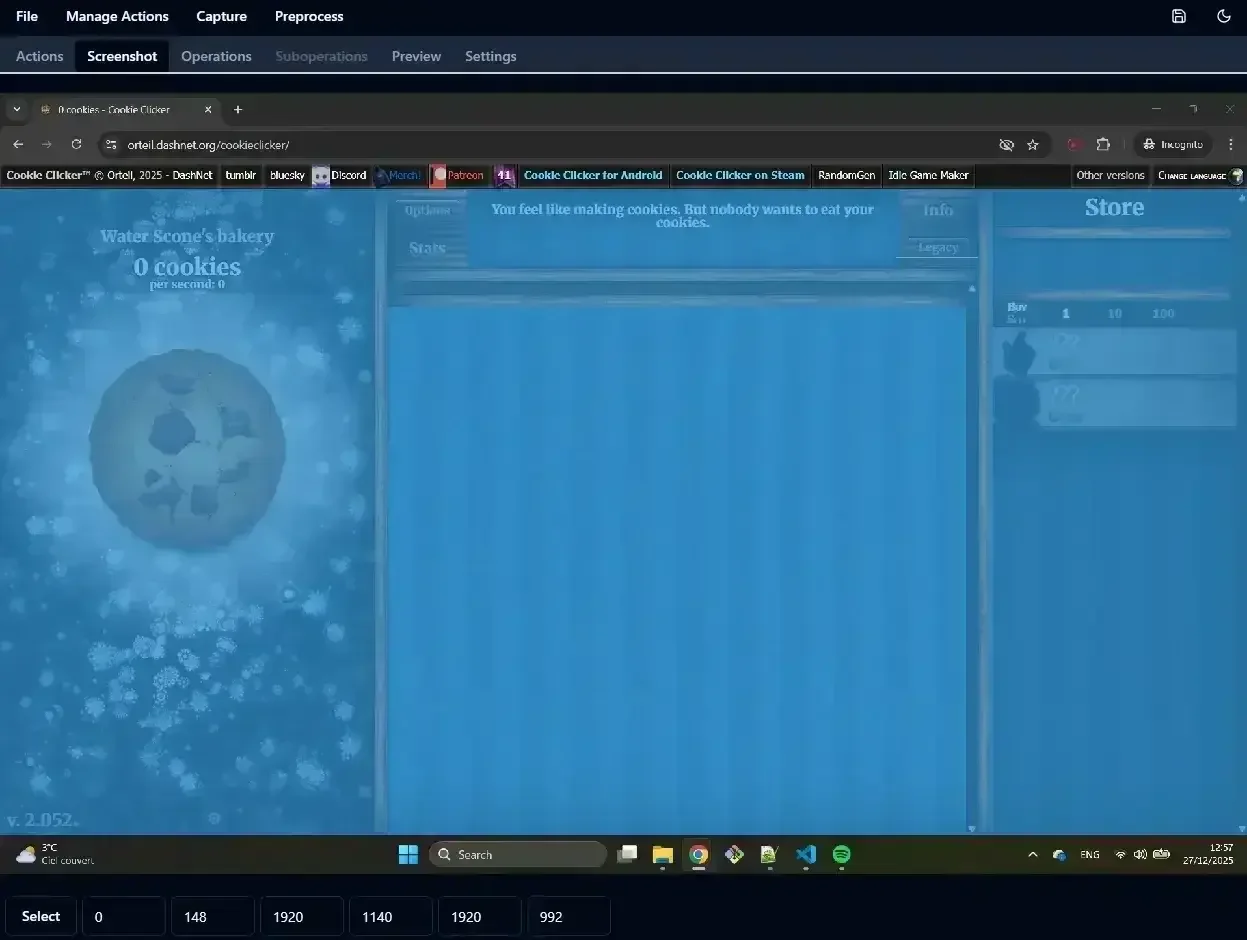
Set as borders the relevant part of the screen or just select the whole screenshot.
To click on the cookie add a Click action: Manage Actions -> Add Action Click. Name it cookie and make the action selection. Select the big cookie on the left.
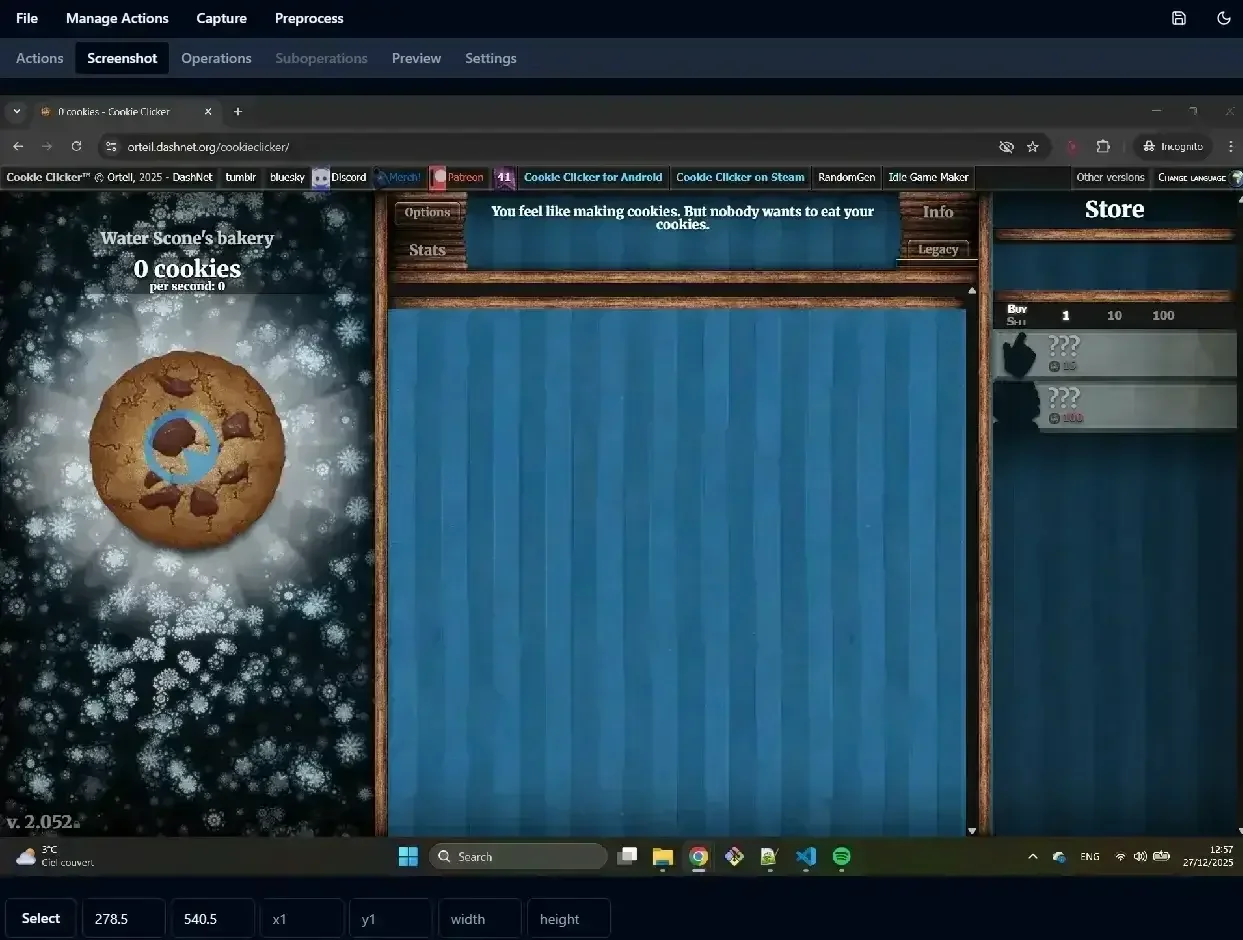
Select where to click on screen for the new action cookie.
Save the file cookieClickerConfig.json in your project folder: File -> Save or Ctrl+S.
Python script
Create a Python file bot.py. Use the guirecognizer class Recognizer to load the configuration file.
Let’s click on the cookie.
1from guirecognizer import Recognizer
2
3recognizer = Recognizer('cookieClickerConfig.json')
4recognizer.executeClick('cookie')
You may want to add a delay if you are using only one screen, to allow time to bring the game window to the foreground after launching the bot.
1import time
2from guirecognizer import Recognizer
3
4time.sleep(5)
5recognizer = Recognizer('cookieClickerConfig.json')
6recognizer.executeClick('cookie')
Run the bot. It makes one tiny click. It’s possible to adjust with the options nbClicks and clickPauseDuration the number of clicks and the duration between them. Some games don’t register multiple clicks when done too fast.
1from guirecognizer import Recognizer
2
3recognizer = Recognizer('cookieClickerConfig.json')
4recognizer.executeClick('cookie', clickPauseDuration=0.025, nbClicks=20)
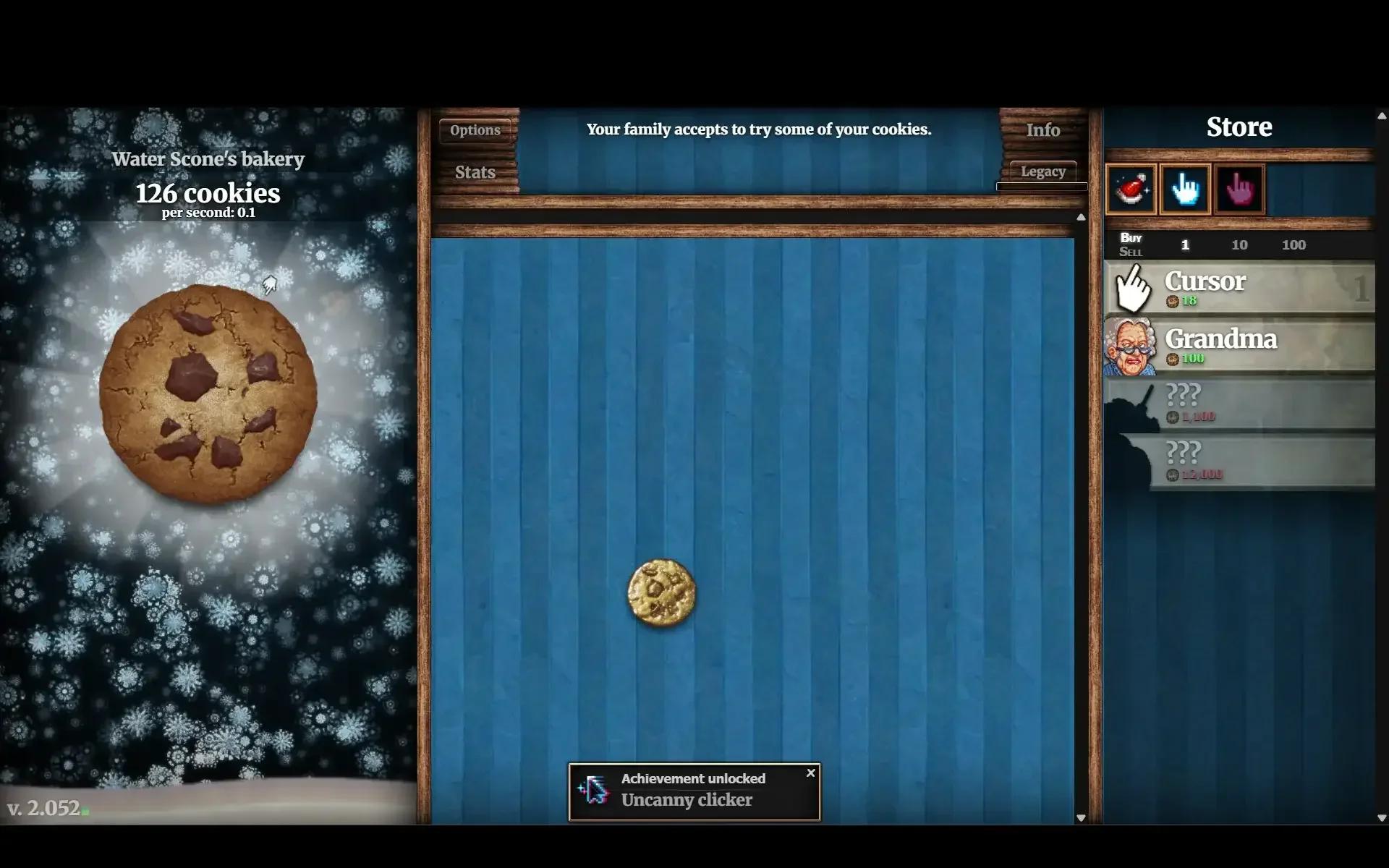
Run the bot. You probably got the achievement Uncanny clicker from the game for clicking inhumanly fast.
Buying buildings
At this point, the bot behaves like an auto-clicker, but it can do much more. To gain more cookies it’s important to buy upgrades and especially the buildings listed on the right.
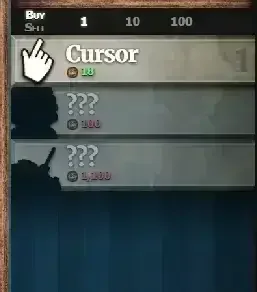
List of the upgrades to produce more cookies, called buildings in this tutorial. More appear when some are unlocked.
Map the buildings on screen
Each building type is highlighted when it is possible to buy another one. Otherwise, it is greyed out. Let’s find where each building ui element is on the screen.
Create a Get Coordinates action: Manage Actions -> Add Action Get Coordinates that points at the top of the first building. Name this action buildingTop.
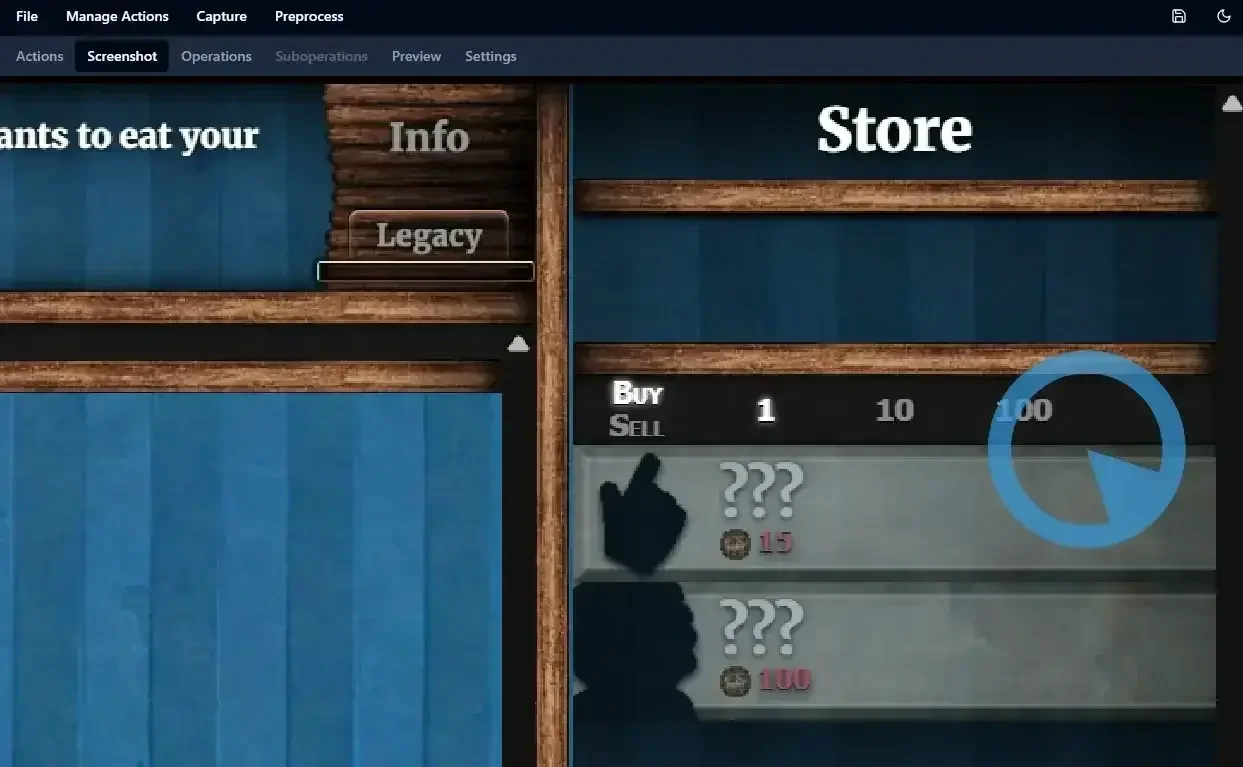
Select a point at the top of the first building ui element.
Create another Get Coordinates action that selects the height of a building ui element. Name this action buildingHeight.
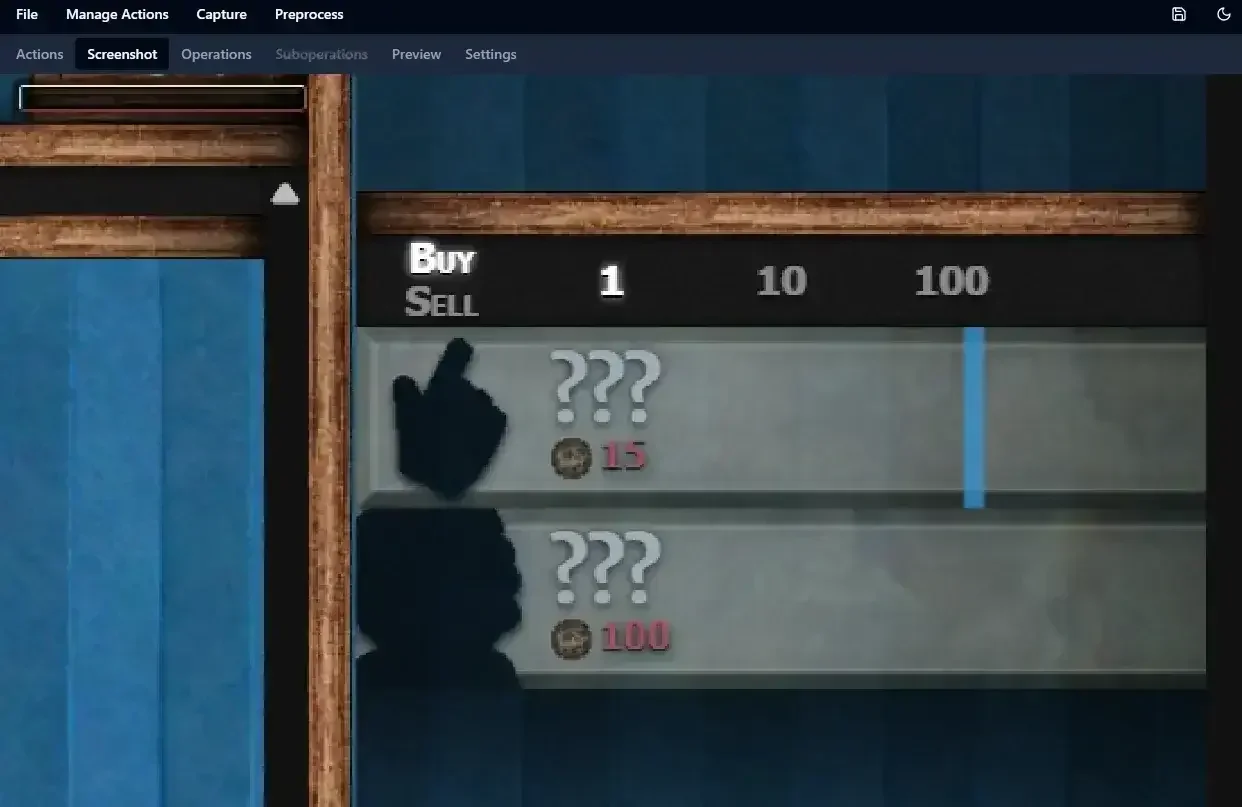
Select the height of a building ui element.
Of course you could hardcode those values but this is one reason to use guirecognizerapp and a config file. Moreover, if the bot needs to be adapted to another screen, only the borders will need to change, along with some minor tweaks.
We can now compute the screen coordinates of all buildings.
 1from guirecognizer import Recognizer
 2
 3recognizer = Recognizer('cookieClickerConfig.json')
 4nbBuildingsInScreen = 9
 5buildingCoords = []
 6topCoord = recognizer.executeCoordinates('buildingTop')
 7coord = recognizer.executeCoordinates('buildingHeight')
 8height = coord[3] - coord[1]
 9for i in range(nbBuildingsInScreen):
10  coord = (topCoord[0], int(topCoord[1] + i * height))
11  buildingCoords.append(coord)
12print(buildingCoords)
[(1826, 362), (1826, 442), (1826, 522), (1826, 602), (1826, 682), (1826, 762), (1826, 842), (1826, 922), (1826, 1002)]
Assess whether a building can be bought
We could look at the pixel color of the screen coordinate of each building and compare it to a value to know whether the building is highlighted meaning it can be bought or not. In practice, the building texture contains color variations. So a more stable solution is to get the average color of a screen portion of the building ui element.
Create a Compare Pixel Color action: Manage Actions -> Add Action Compare Pixel Color and select a rectangle starting at the same point of the previous action buildingTop with 50 pixel width and 10 pixel height. Name it buildingAvailableDiff.
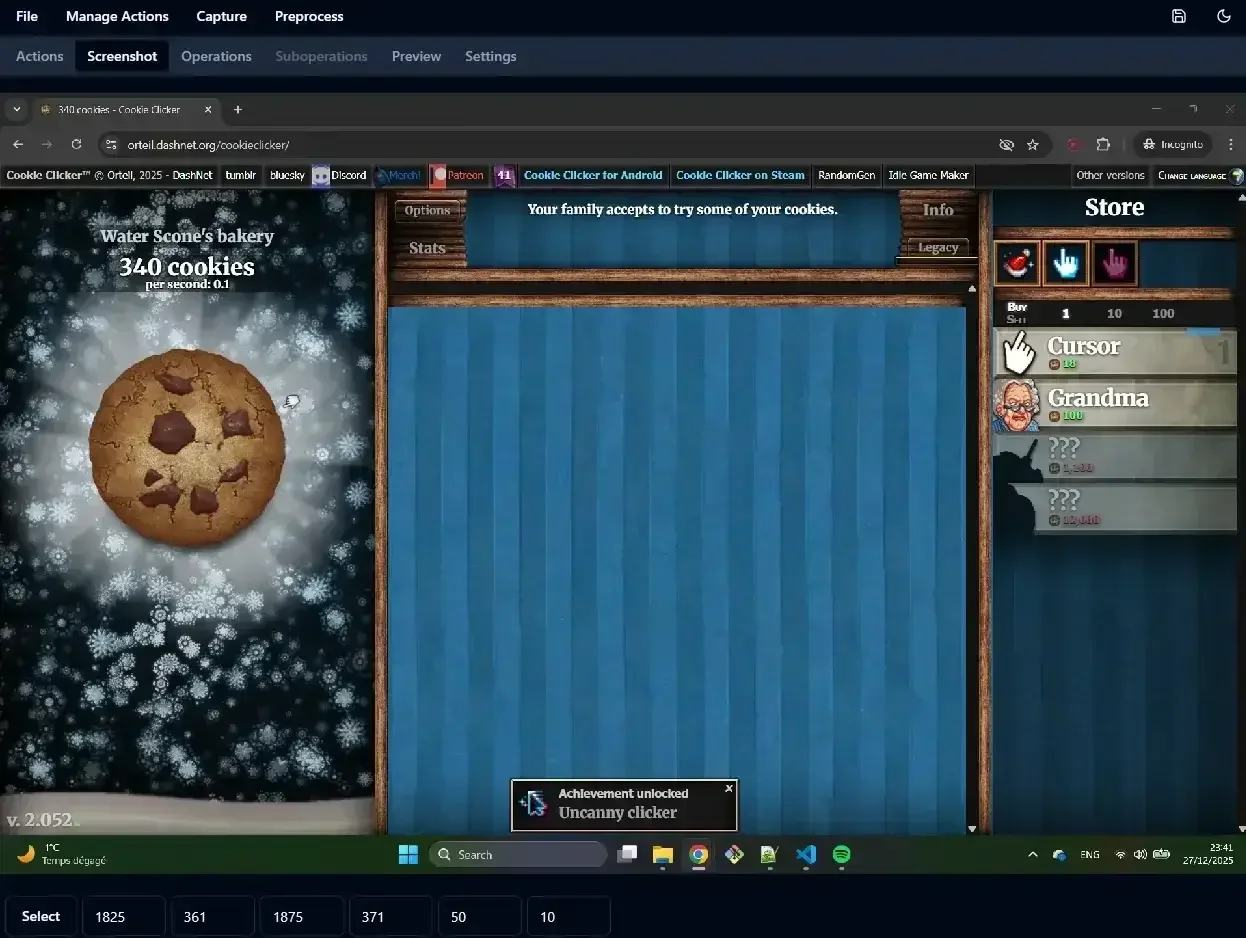
Select the area for the Compare Pixel Color action.
Create another action called buildingUnavailableDiff. For instance buy the first building until it’s unavailable, take a screenshot, then select the same area of buildingAvailableDiff. It’s possible to select the same area as another action in the controls of the screenshot tab.
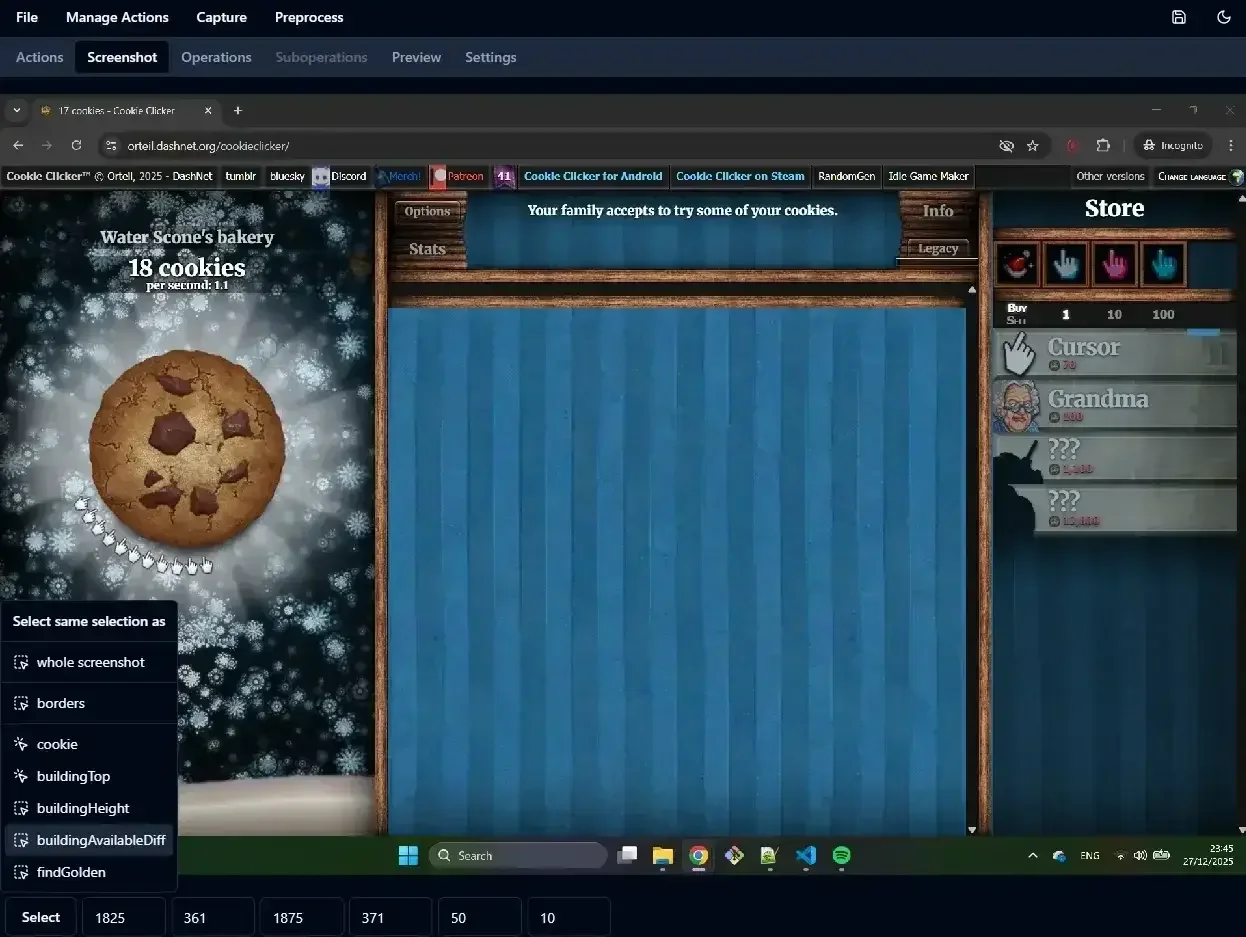
Select the area for the Compare Pixel Color action to test when a building cannot be bought.
Let’s find out in the bot for each building if it can be bought.
 1from guirecognizer import ActionType, Recognizer
 2
 3recognizer = Recognizer('cookieClickerConfig.json')
 4nbBuildingsInScreen = 9
 5buildingCoords = []
 6topCoord = recognizer.executeCoordinates('buildingTop')
 7coord = recognizer.executeCoordinates('buildingHeight')
 8height = coord[3] - coord[1]
 9for i in range(nbBuildingsInScreen):
10  coord = (topCoord[0], int(topCoord[1] + i * height))
11  buildingCoords.append(coord)
12
13canBuy = []
14for coord in buildingCoords:
15  pixels = (coord[0], coord[1], coord[0] + 50, coord[1] + 10)
16  color = recognizer.executePixelColor(ActionType.PIXEL_COLOR, coord=pixels)
17  availableDiff = recognizer.executeComparePixelColor('buildingAvailableDiff', pixelColor=color)
18  unavailableDiff = recognizer.executeComparePixelColor('buildingUnavailableDiff', pixelColor=color)
19  canBuy.append(availableDiff < unavailableDiff)
20print(canBuy)
Here is the result when this is the state of the game.
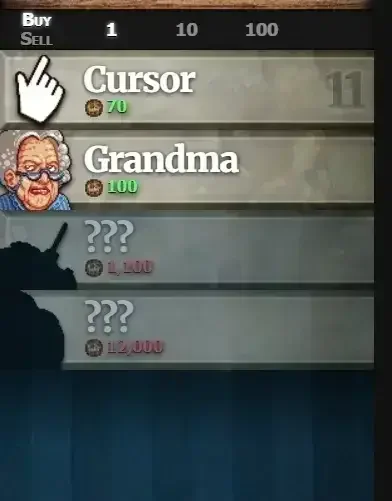
Select the area for the Compare Pixel Color action.
[True, True, False, False, False, False, False, False, False]
Then the bot can decide whether to buy any of the available ones but the logic is up to you.
Here is how to buy a building.
recognizer.executeClick(ActionType.CLICK, coord=buildingCoords[1])
The golden cookie
Golden cookies appear randomly on the screen and provide significant bonuses to cookie production. Detecting them makes the bot a lot more efficient.
A golden cookie.
Simple approach
Golden cookies appear randomly and don’t appear often at the start of the game. Automating rare events like this one is difficult to test. Wait until a golden cookie appear and take a screenshot of it.
Create a Find Coordinates of Images Inside Area action: Manage Actions -> Add Action Find Coordinates of Images Inside Area. Name it findGolden. It will try to find a specific image inside the selected area. Select the same area as the borders to search for golden cookies inside the whole game interface. Then select as the image to find a rectangle contained inside the golden cookie.
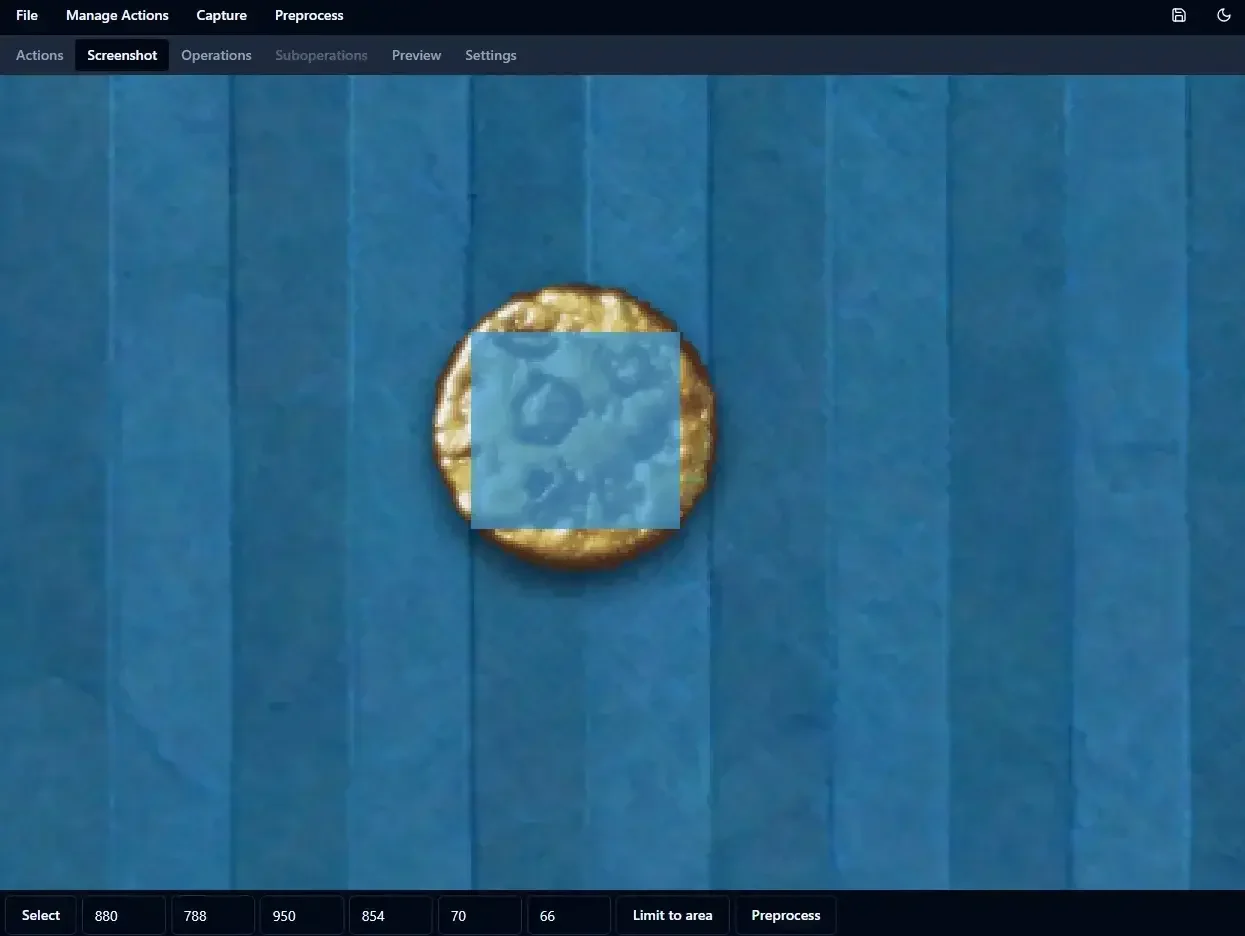
Select the image to find so as to search for golden cookies.
You can also increase the image hash threshold in the parameters of the action to the value 10 to better identify similar but different golden cookies. You can also increase the number of subimages to allow finding multiple golden cookies at once.
With guirecognizerapp you can preview any action on the current screenshot. Preview the new action findGolden.
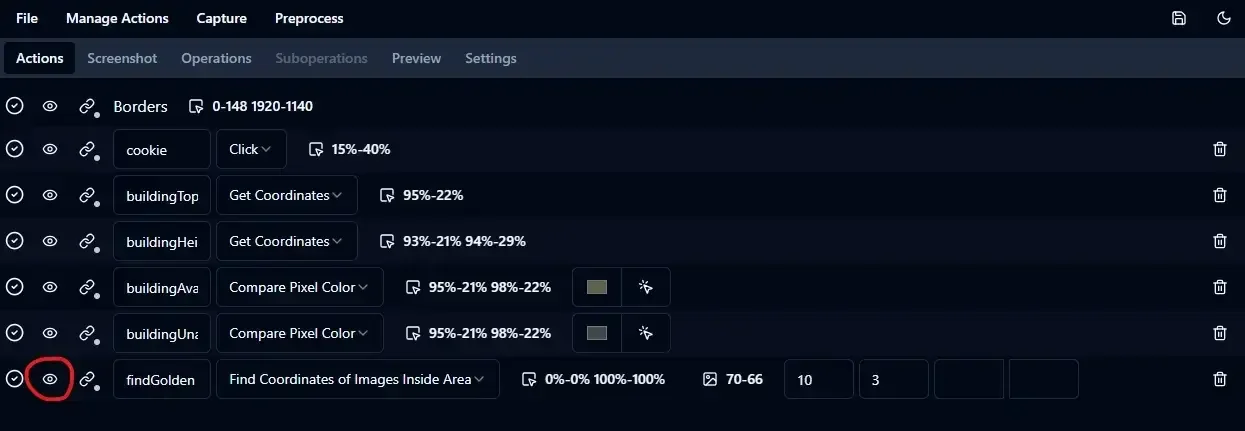
Preview action findGolden.
If you are using the same screenshot where you defined the image to find, it should find it. The performance of the search algorithm depends on the size of the search area and the size of the image to find. It’s faster when the search area is small and when the image to find is big.
In the Python bot, search for the coordinates of golden cookies then click on them if any.
1coords = recognizer.executeFindImage('findGolden')
2for coord in coords:
3  center = (int((coord[0] + coord[2]) / 2), int((coord[1] + coord[3]) / 2))
4  recognizer.executeClick(ActionType.CLICK, coord=center)
Improve performance
After the first call (which warms up the server) it takes in the example of this tutorial around 400ms to search for golden cookies. Since golden cookies have different size, you may need to create other actions and/or use the parameters min and max size ratios meaning efficiently searching for golden cookies takes a lot of time. But golden cookies don’t stay on the screen for a long time so it may be interesting to improve the performance of the search.
A way to improve the performance is to reduce the search area by applying a preprocessing operation to the screenshot.
Create a new operation: Preprocess -> Add Operation. Name it golden. Click on the edit button of the operation. Then add a suboperation Resize: Preprocess -> Add Suboperation -> Resize. Let’s resize by fixing the width to 200 pixels.
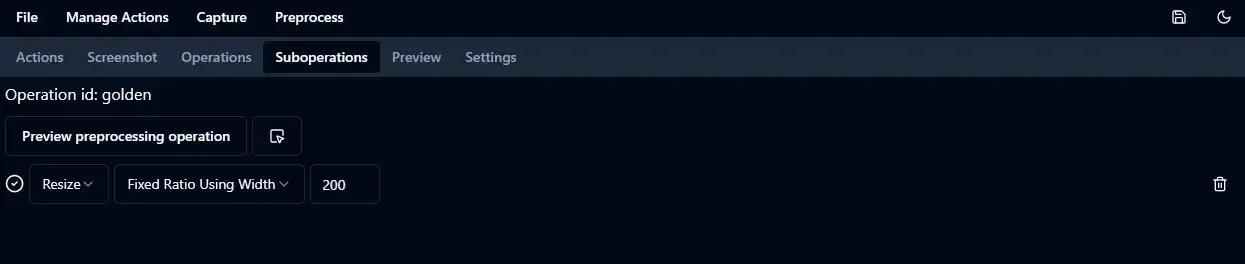
Create a preprocessing operation to resize the screenshot.
Then adapt the action findGolden. Reselect the image to find on the screeenshot but first apply the preprocessing golden from the controls at the bottom of the screenshot tab.
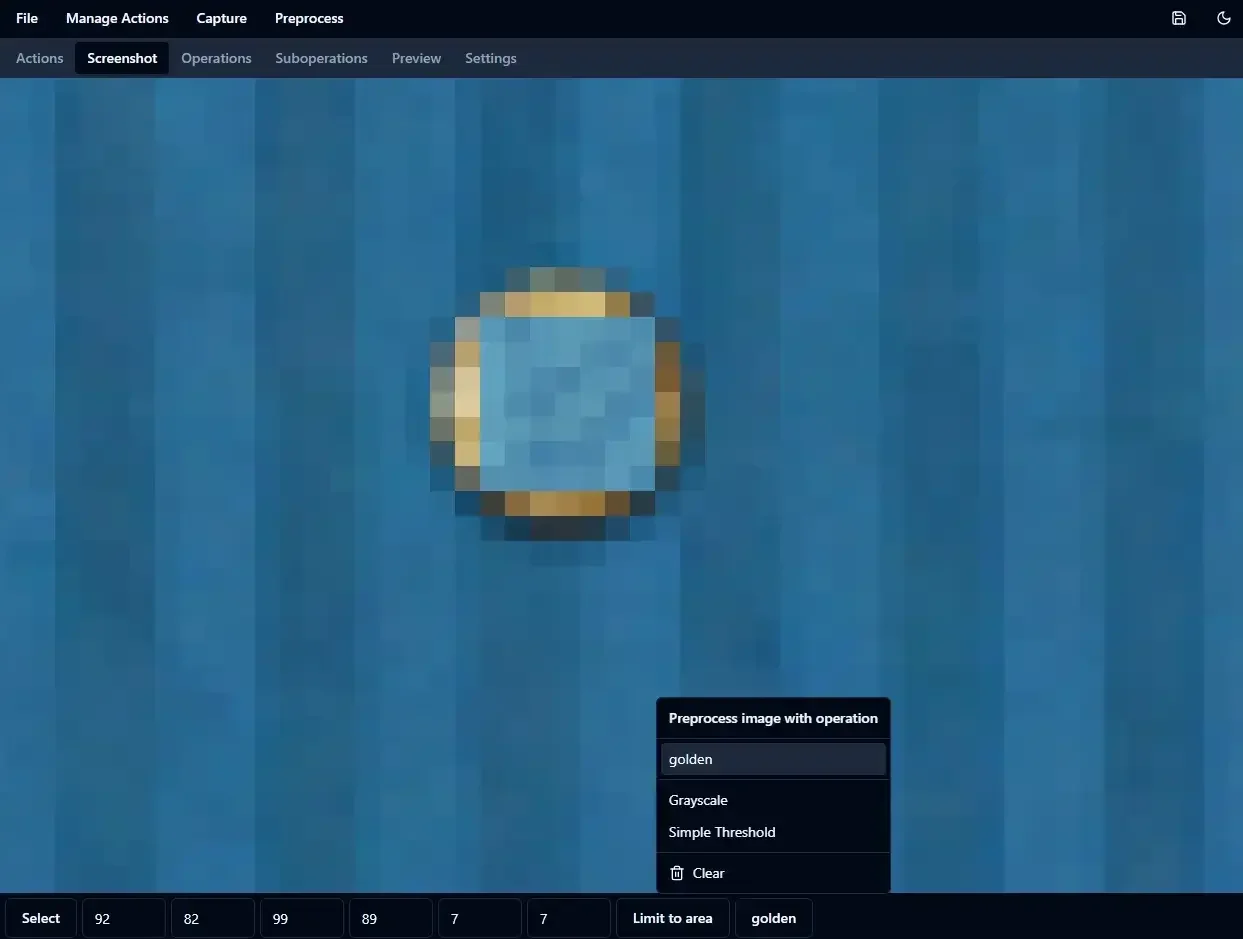
Reselect the image to find.
Finally preview again the action findGolden and select the preprocessing golden. The performance in this example has improved from 400ms to 33ms.
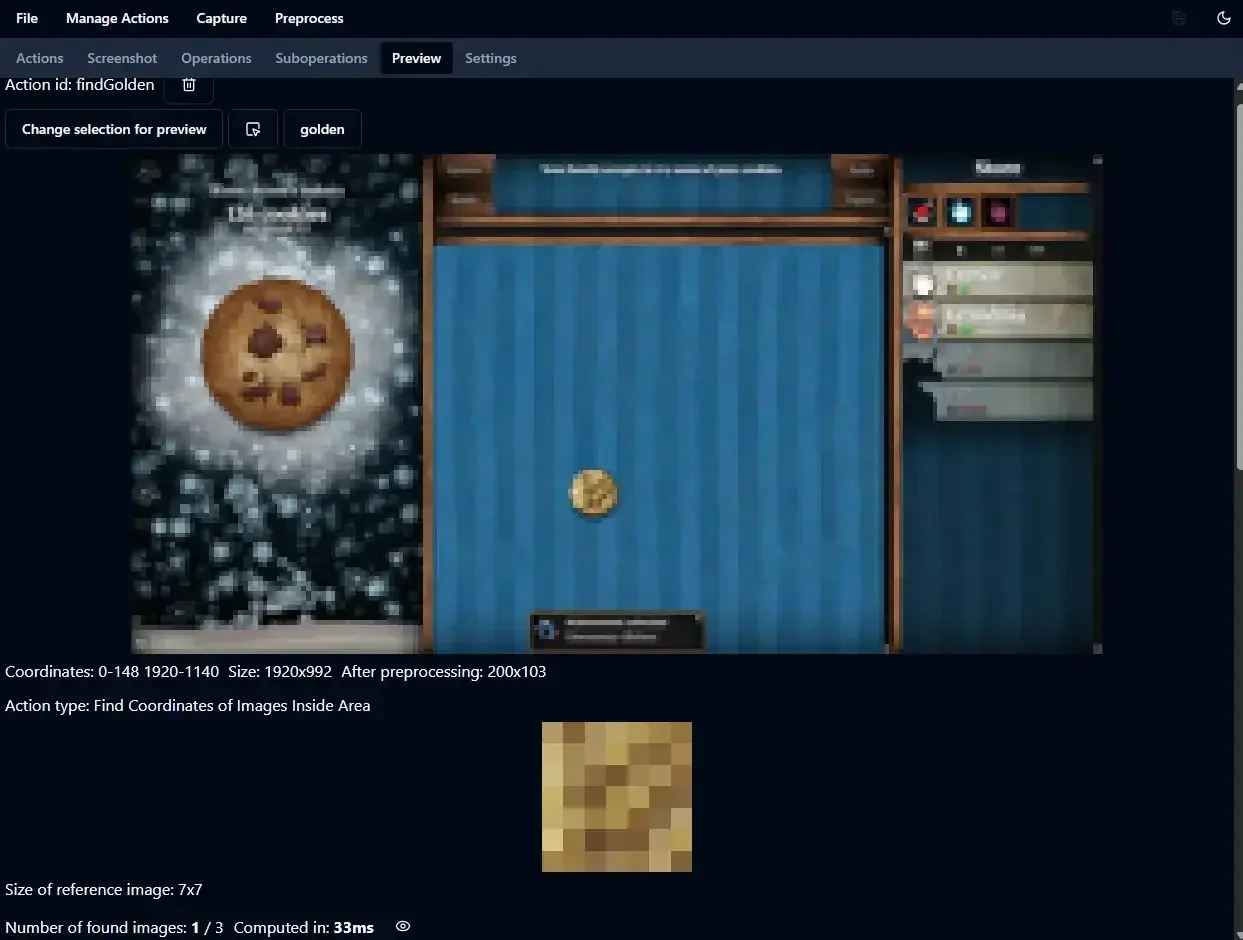
Preview findGolden with preprocessing golden. The search performance has improved.
In the Python bot:
coords = recognizer.executeFindImage('findGolden', preprocessing='golden')
Assembling the pieces together
The bot handles three independent tasks: clicking on the cookie, managing updates and finding golden cookies. Since at least clicking on the cookie and searching golden cookies are full time jobs, multiple processes are necessary. As an analogy, instead of one employee multitasking, we assign one employee to each task. This is why we are going to use the Python library multiprocessing.
We are going to spawn one process for each task then wait for them to finish. They are multiple processes but only one mouse. So we are going to use a multiprocessing.Lock to handle the mouse between the tasks.
Here is the full code example.
 1import multiprocessing as mp
 2import time
 3from multiprocessing.synchronize import Lock
 4
 5def clickCookie(mouseLock: Lock) -> None:
 6  while True:
 7    mouseLock.acquire()
 8    print('click for 1s')
 9    time.sleep(1) # Simulate clicking continuously on the big cookie.
10    mouseLock.release()
11
12def manageUpdates(mouseLock: Lock) -> None:
13  while True:
14    time.sleep(5) # Simulate assessing if any update should be bought and waiting.
15    mouseLock.acquire()
16    print('manage updates') # Simulate clicking on the building to buy.
17    mouseLock.release()
18
19def findGolden(mouseLock: Lock) -> None:
20  while True:
21    time.sleep(12) # Simulate searching for golden cookies with action findGolden until one is find.
22    mouseLock.acquire()
23    print('find golden') # Simulate clicking on the found golden cookie.
24    mouseLock.release()
25
26def main() -> None:
27  mouseLock = mp.Lock()
28  processes = []
29  args = (mouseLock,)
30  processes.append(mp.Process(target=clickCookie, args=args))
31  processes.append(mp.Process(target=manageUpdates, args=args))
32  processes.append(mp.Process(target=findGolden, args=args))
33  for process in processes:
34    process.start()
35  for process in processes:
36    process.join()
37
38if __name__ == '__main__':
39  main()
For the sake of this tutorial each task is simulated with time.sleep.
On lines 30, 31, and 32, a new process is created for each task. Line 36 is essential to wait for each process to finish.
You can stop the bot with Ctrl+C or implement a cleaner way to stop it with multiprocessing.Event for instance.
Here is a part of the console output.
click for 1s
click for 1s
click for 1s
click for 1s
click for 1s
manage updates
click for 1s
click for 1s
click for 1s
click for 1s
click for 1s
manage updates
click for 1s
click for 1s
find golden
click for 1s
Now you can replace the content of the functions clickCookie, manageUpdates and findGolden and create a functional bot.
What’s next?
You can extend the bot by buying upgrades, supporting more than the first buildings, fine tune the golden cookie detection and more.
You can try running a functional bot at https://github.com/fab5code/guirecognizer/tree/main/examples/cookieClicker.