Sushi Go Round
The code is available at https://github.com/fab5code/guirecognizer/tree/main/examples/sushiGoRound and includes instructions to run the bot. The bot plays the game automatically.
Let’s explain how to retrieve game information from screen pixels and handle game interactions using guirecognizer.
What is Sushi Go Round?
Sushi Go Round is a fast-paced restaurant management game where you prepare and serve sushi to customers before they lose patience. You must assemble dishes according to orders while managing a limited stock of ingredients, restocking supplies in time to keep the sushi bar running smoothly.
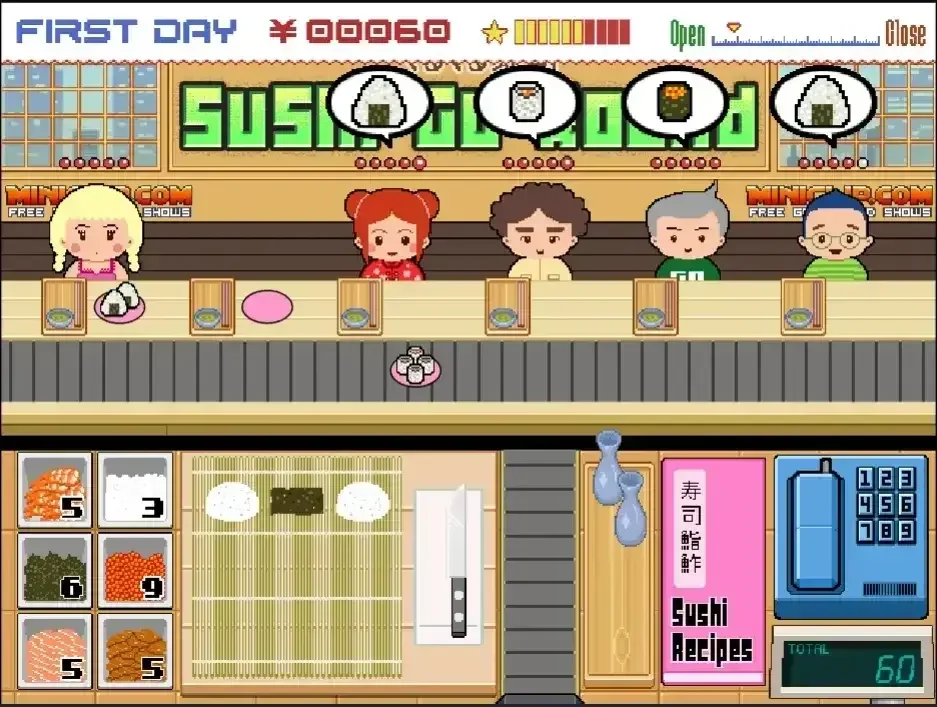
In Sushi Go Round, you have up to six customers to server. Identify their orders, make sushi and manage the stock of ingredients.
Why a bot about Sushi Go Round?
When searching for tutorials about creating bots that interact with graphical user interfaces, the following article often comes up. It is an old but still valuable tutorial that explains how to build a Python bot for this exact browser game, Sushi Go Round, using low-level techniques such as manual screen analysis and hardcoded logic.
This example is in part a homage to that original post. At the same time, revisiting Sushi Go Round provides a good opportunity to demonstrate how using guirecognizer simplifies the process today. Compared to the original approach, guirecognizer allows building the same kind of bot in a way that is faster to implement, cleaner to maintain, and more user-friendly, thanks to its visual configuration tool, reusable actions, and higher-level abstractions over screen recognition and input handling.
Identify the customer orders
When a customer arrives, a bubble appears above their head showing a specific sushi. Let’s use guirecognizerapp to retrieve the drawing of the sushi and identify it.
Create the bot configuration file
Install guirecognizerapp (this will also install guirecognizer)
(venv) $ pip install guirecognizerapp
Launch the application:
(venv) $ python -m guirecognizerapp
In parallel open https://www.crazygames.com/game/sushi-go-round. Play or skip the tutorial until the first day starts and six customers are present.
In guirecognizerapp take a screenshot of the game: Capture -> Take Screenshot or shortcut Ctrl+Alt+T.
Then define the borders, which represent the absolute coordinates of the screen region that serve as a reference for all actions. Define the borders so that they cover exactly the game interface, without any black borders if present.
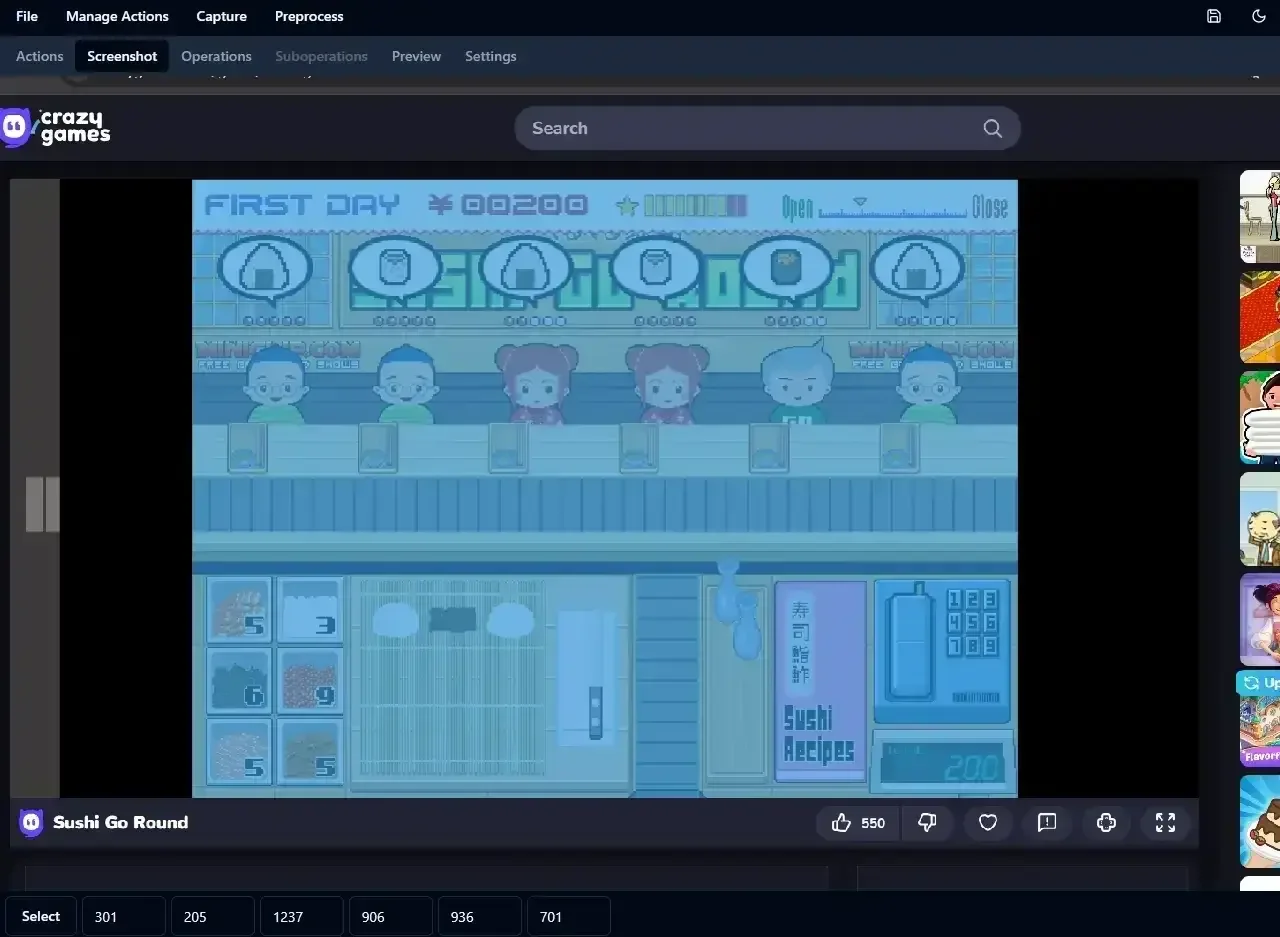
Define as borders the game interface.
Select customer orders
Create a Get Image Hash action: Manage Actions -> Add Action Get Image Hash and select a rectangle around the bubble of the first customer. Name the action client0.
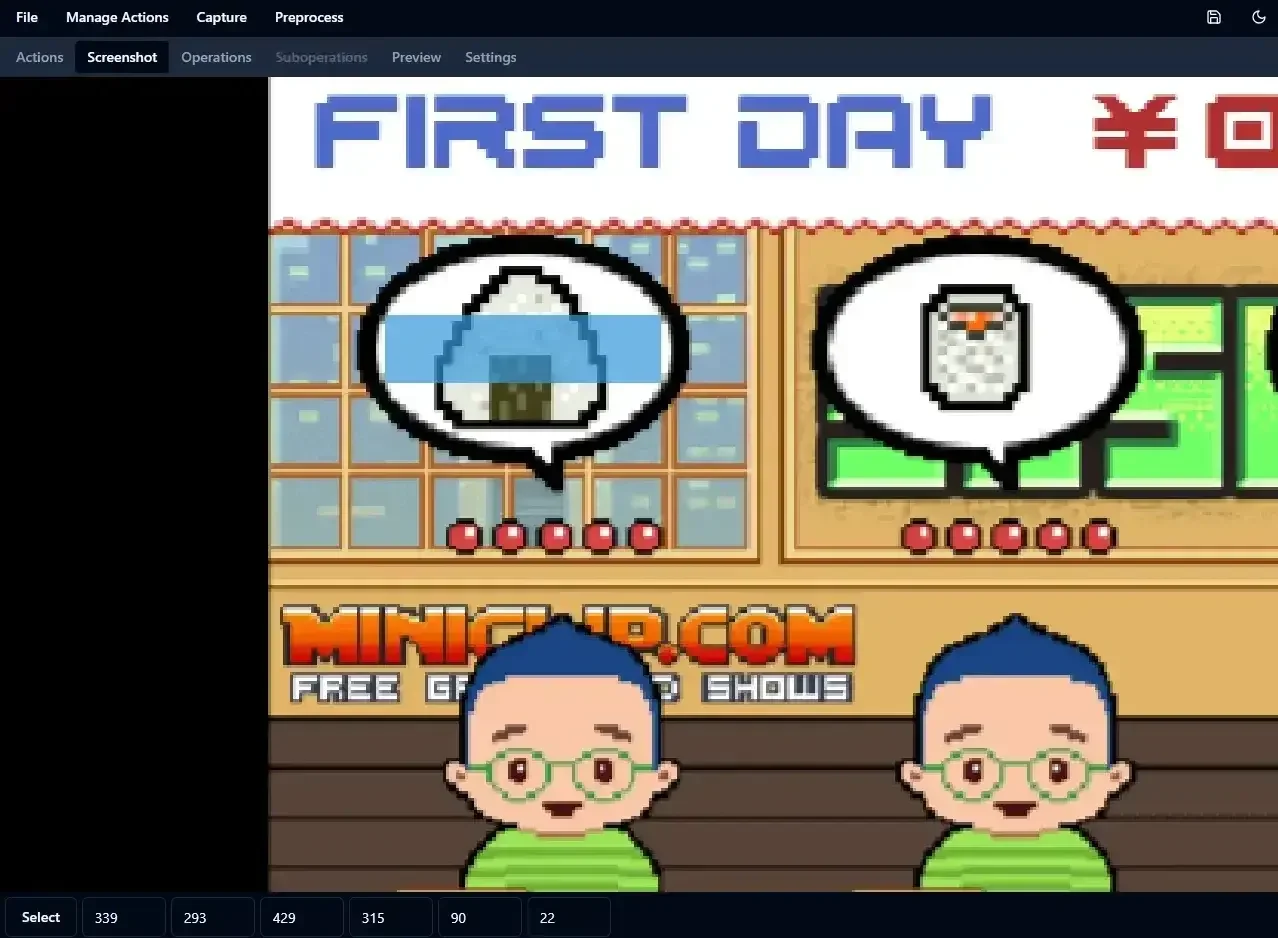
To retrieve the first customer order, select a rectangle inside its bubble.
Save the file sushiGoRoundConfig.json in your project folder: File -> Save or Ctrl+S.
With an image hash, two visually similar images have a small difference in their hashes. We can use those hashes to identify the order of each customer.
Create again a Get Image Hash action for each of the five other customers. Select a rectangle of the same size and around the same pixels relatively to each customer bubble. Use the controls at the bottom of the screenshot tab to monitor with accuracy the width and height of the selection. Name thoses actions client1, client2, client3, client4 and client5.
Let’s loop through the customers to retrieve their image hash.
1from guirecognizer import Recognizer
2
3recognizer = Recognizer('sushiGoRoundConfig.json')
4for i in range(6):
5  imageHash = recognizer.executeImageHash(f'client{i}')
6  print(i, imageHash)
0 abcc61339de163c1,06e00000000
1 ac33666ccc99cccc,07600030000
2 afcc6323cdc163c1,06e00000000
3 bc33764ccc8ccccc,07600030000
4 b4cc999933333366,07c00008000
5 bbc86133cde163c1,06e00000000
Identify the orders
Create a Get Compare Image Hash action: Manage Actions -> Add Action Compare Image Hash. It will be used to identify whether a customer’s order is an onigiri. Name it onigiri. You could try to select manually the same rectangle as the one used by a client action but it’s easier to use the controls at the bottom and select the same selection as one of the client actions.
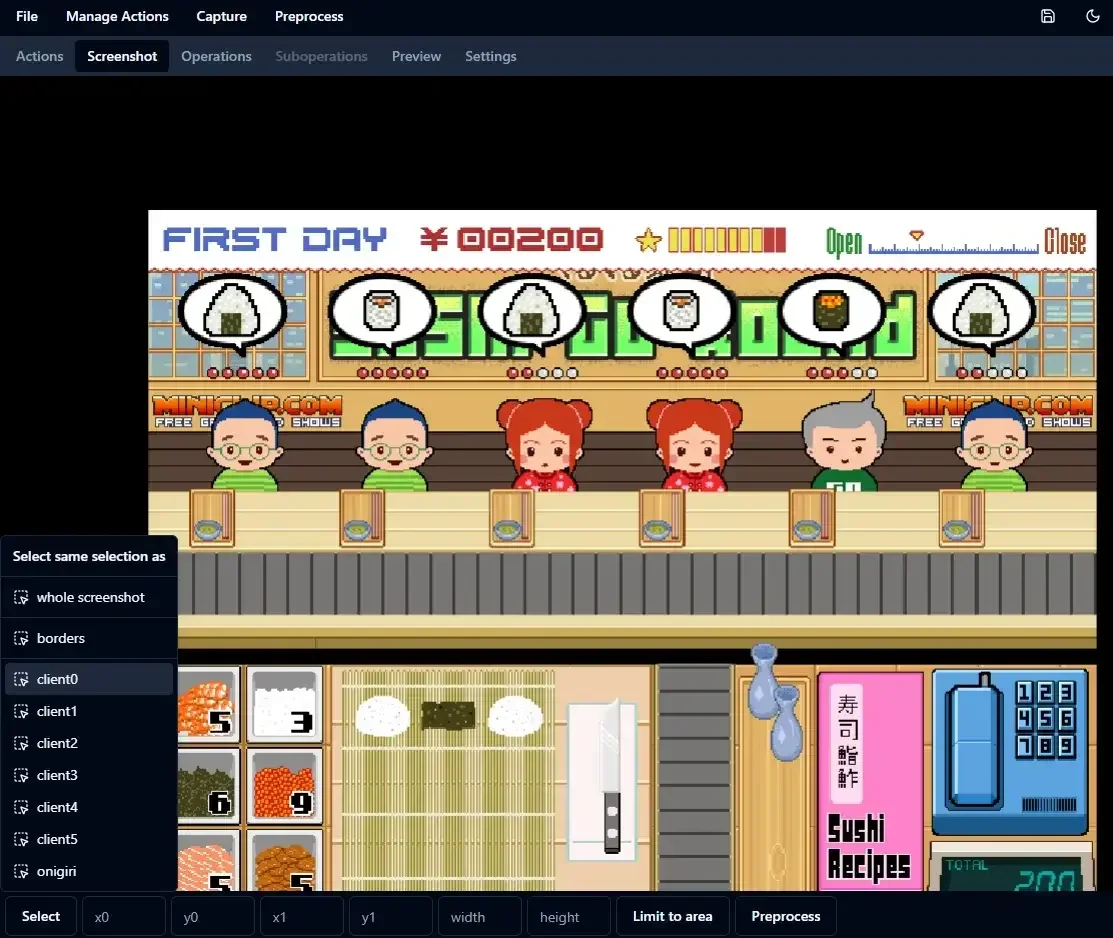
Select the same selection as one of the client actions that has an onigiri. In this screenshot, any of the actions client0, client2 and client5 works.
Create two similar actions for the other two sushi types. Name them californiaRoll and gunkanMaki.
Let’s loop through the customers to retrieve their order. A customer’s order is identified as the sushi with the smallest hash difference.
 1from guirecognizer import Recognizer
 2
 3recognizer = Recognizer('sushiGoRoundConfig.json')
 4for i in range(6):
 5  imageHash = recognizer.executeImageHash(f'client{i}')
 6  minDiff = 10000
 7  order = None
 8  for compareAction in ['onigiri', 'californiaRoll', 'gunkanMaki']:
 9    diff = recognizer.executeCompareImageHash(compareAction, imageHash=imageHash)
10    if diff < minDiff:
11      minDiff = diff
12      order = compareAction
13  print(i, order)
On the following screenshot we have this console output. Every order is correct.

The bot correctly identifies the orders of all six customers.
0 californiaRoll
1 onigiri
2 gunkanMaki
3 californiaRoll
4 gunkanMaki
5 gunkanMaki
Make sushi
Now that we know our customer orders, let’s make sushi.
Create a Click action: Manage Actions -> Add Click Action. Select the rice ingredient. Name the action rice.
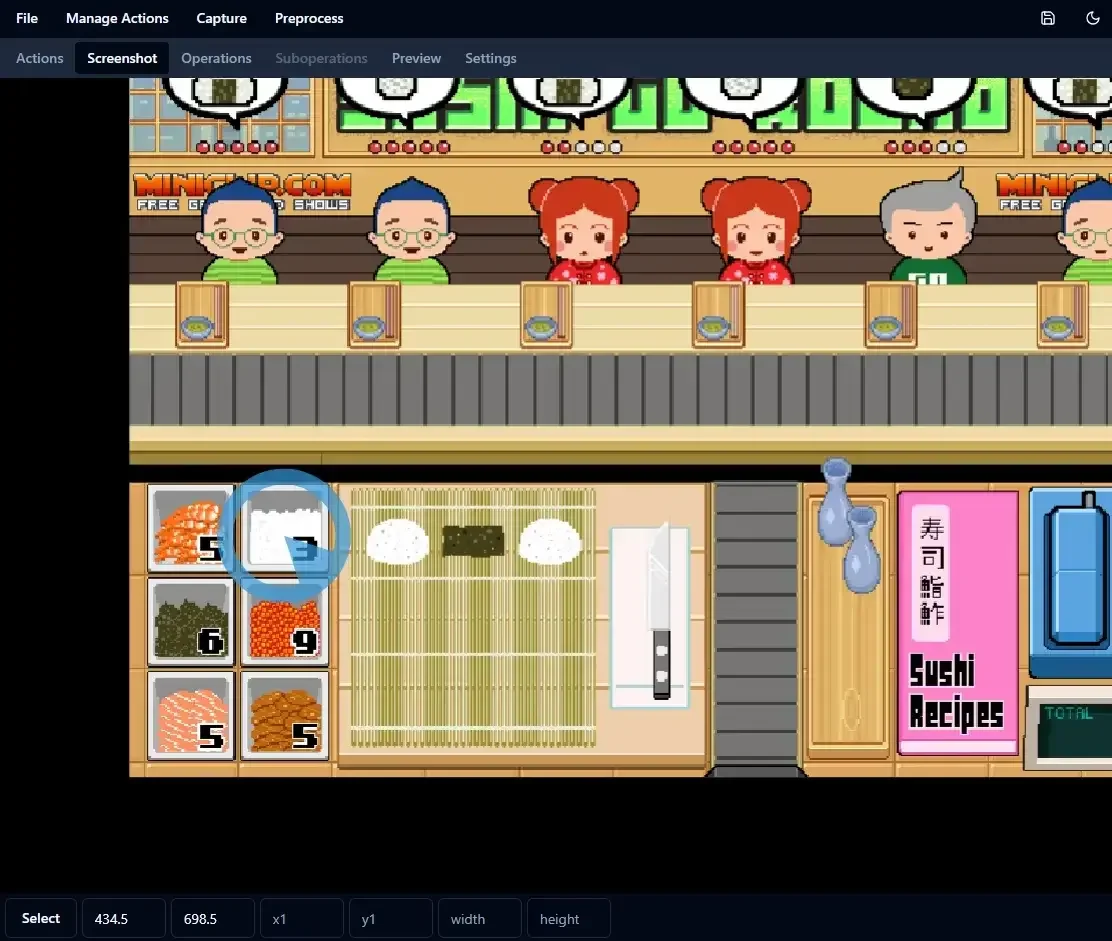
Select the rice ingredient.
Create two other click actions for nori and fish eggs. Name them nori and fishEggs. Finally add an action to click on the mat to make the sushi. Name it makeSushi.
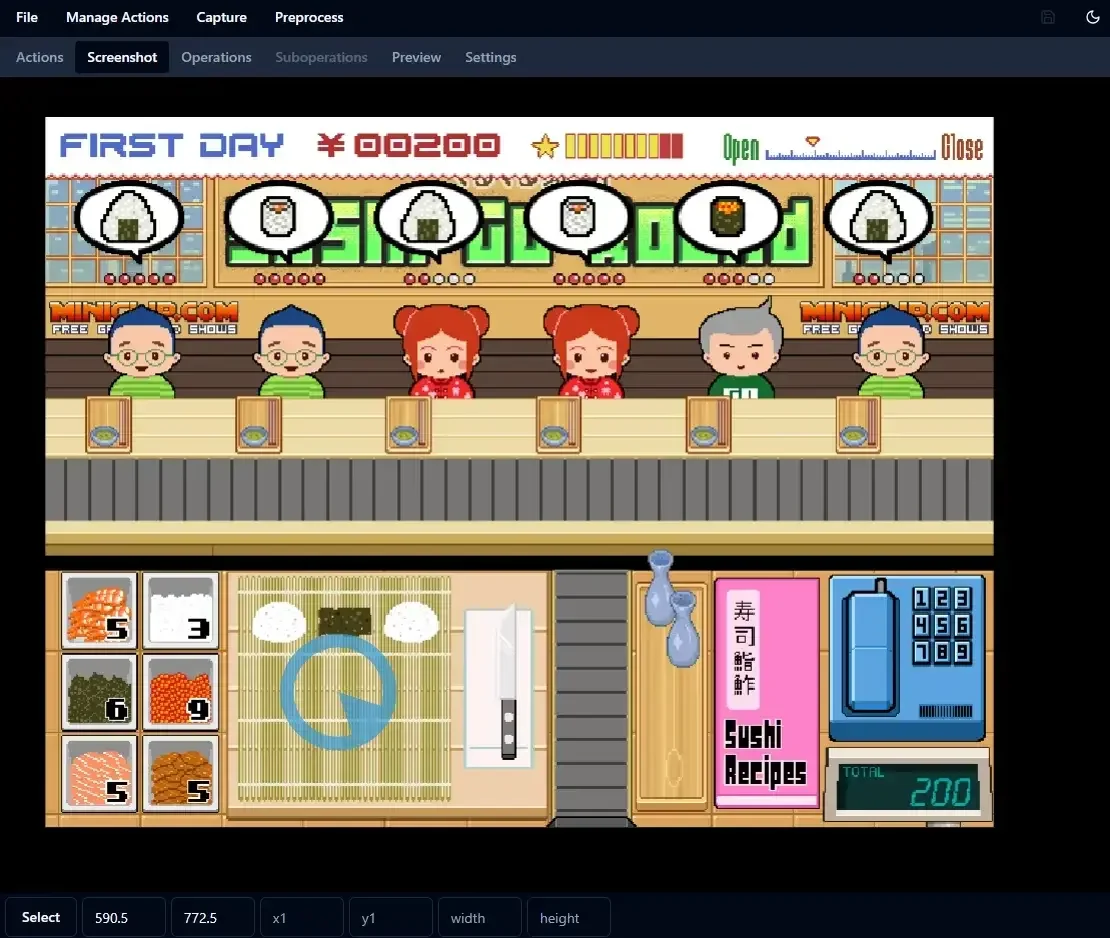
Add an action to click on the mat to make the sushi.
Let’s make the sushi for the first customer.
 1from guirecognizer import Recognizer
 2
 3recognizer = Recognizer('sushiGoRoundConfig.json')
 4imageHash = recognizer.executeImageHash('client0')
 5minDiff = 10000
 6order = None
 7for compareAction in ['onigiri', 'californiaRoll', 'gunkanMaki']:
 8  diff = recognizer.executeCompareImageHash(compareAction, imageHash=imageHash)
 9  if diff < minDiff:
10    minDiff = diff
11    order = compareAction
12
13if order == 'onigiri':
14  recognizer.executeClick('rice')
15  recognizer.executeClick('rice')
16  recognizer.executeClick('nori')
17elif order == 'californiaRoll':
18  recognizer.executeClick('rice')
19  recognizer.executeClick('nori')
20  recognizer.executeClick('fishEggs')
21else:
22  recognizer.executeClick('rice')
23  recognizer.executeClick('nori')
24  recognizer.executeClick('fishEggs')
25  recognizer.executeClick('fishEggs')
26recognizer.executeClick('makeSushi')
From line 4 to 11 the order of the first customer is found. Then, starting at line 13, the bot makes the sushi inhumanly fast.
In this part of the bot, guirecognizer is particularly useful to manage many different elements to click on.
Managing the stock of ingredients
Let’s see how to refill rice when we run out.
Create a click action on the telephone to open the buy menu. Name it buy.
Take a screenshot and add another action to click on the rice item. Name it buyRice1.
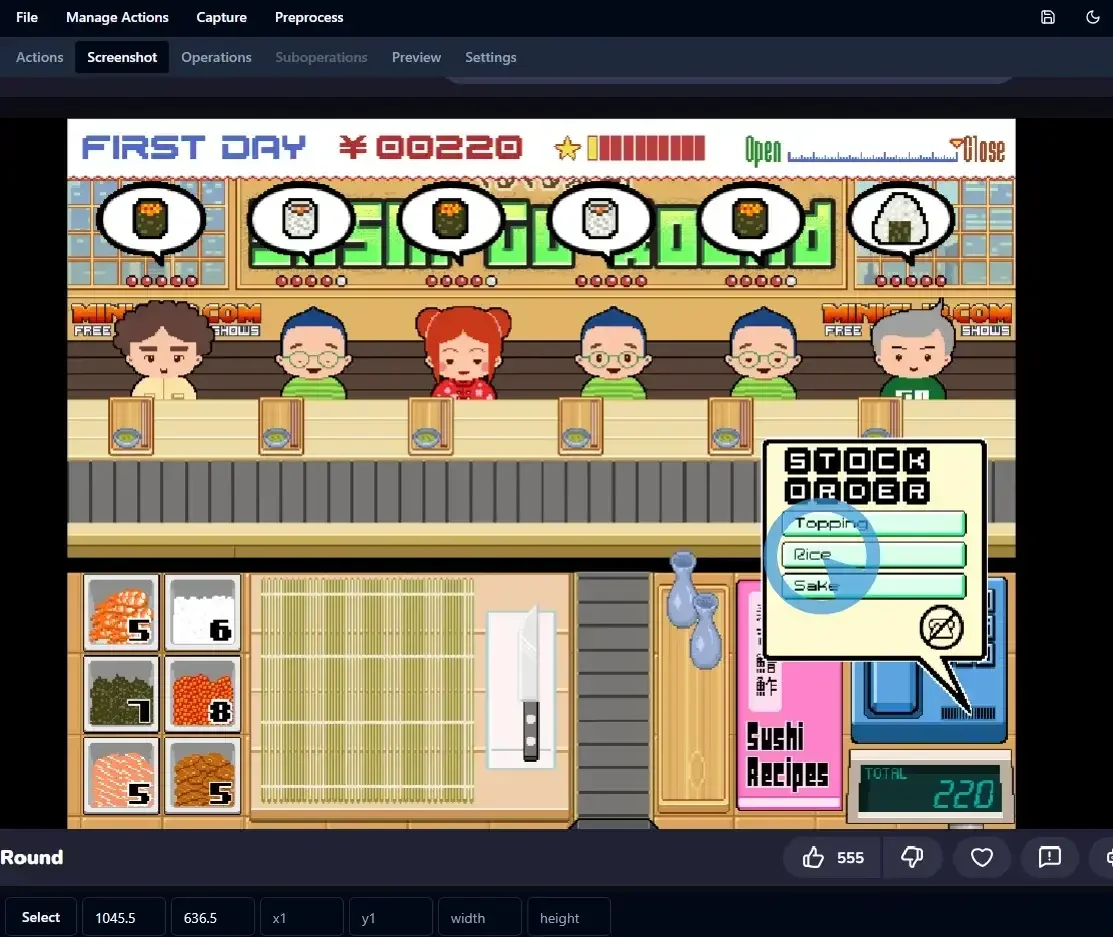
Add an action to click on the rice item.
Take another screenshot and add a third click action to confirm buying rice. Name it buyRice2.
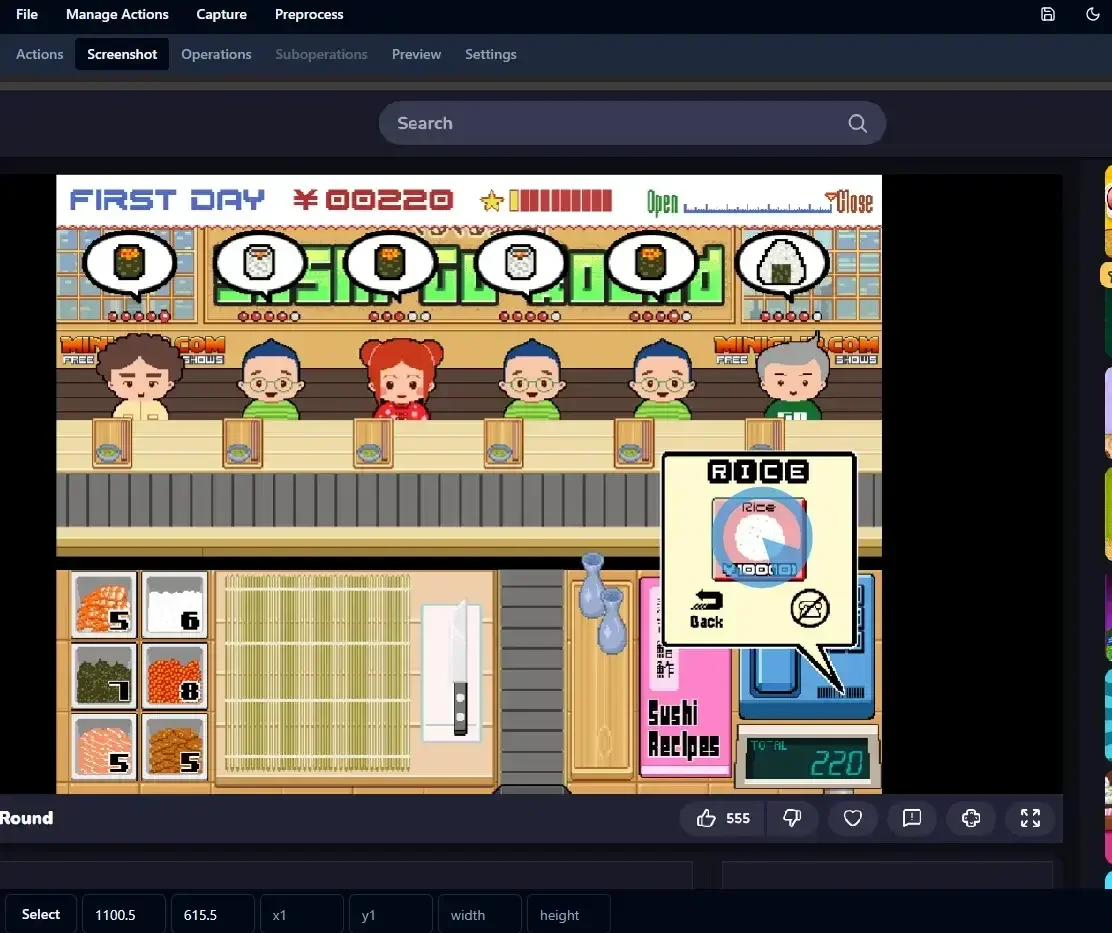
Add a click action to confirm buying rice.
Finally take another screenshot and add a fourth and last click action to confirm the delivery. Name it delivery.
Here is the code to buy some rice.
1from guirecognizer import Recognizer
2
3recognizer = Recognizer('sushiGoRoundConfig.json')
4recognizer.executeClick('buy')
5recognizer.executeClick('buyRice1')
6recognizer.executeClick('buyRice2')
7recognizer.executeClick('delivery')
You can extend the bot to handle buying the other ingredients and manage the stock.
Assembling the pieces together
The bot handles three independent tasks: identifying orders, making sushi and managing ingredients. Those tasks can be done sequentially. As an analogy, instead of having multiple employees each handling a single task, we have one employee multitasking. This is why we are going to use the Python library asyncio.
For the sake of this tutorial, here is only a skeleton illustrating the use of asyncio.
 1import asyncio
 2import time
 3
 4async def takeOrders():
 5  while True:
 6    print('Taking orders')
 7    time.sleep(1) # Simulate taking orders.
 8    await asyncio.sleep(0.5)
 9
10async def makeSushi():
11  while True:
12    print('Making sushi')
13    time.sleep(1.5) # Simulate making sushi.
14    await asyncio.sleep(0.5)
15
16async def manageIngredients():
17  while True:
18    print('Managing ingredients')
19    time.sleep(2.5) # Simulate managing ingredients.
20    await asyncio.sleep(0.5)
21
22async def main():
23  await asyncio.gather(takeOrders(), makeSushi(), manageIngredients())
24
25asyncio.run(main())
Here is a part of the console output.
Taking orders
Making sushi
Managing ingredients
Taking orders
Making sushi
Managing ingredients
Taking orders
The different functions can share a common state containing for instance the list of orders and the number of ingredients left. Now you can replace the content of the functions takeOrders, makeSushi and manageIngredients and create your own bot.
What’s next?
To build a fully functional bot that can successfully play through a full day, you will probably need to:
identify when a customer is present
manage empty plates
handle the case where one customer takes another customer’s order
make sure the sushi made has left the mat to make another one
You can try running a functional bot at https://github.com/fab5code/guirecognizer/tree/main/examples/sushiGoRound.