Otteretto
The code is available at https://github.com/fab5code/guirecognizer/tree/main/examples/otteretto and includes instructions to run the bot. The bot plays the game automatically.
Let’s explain how to retrieve game information using screen pixels.
What is Otteretto?
Otteretto is a game about palindromes. Blocks of different colors are arranged on a grid of 4 by 10. The goal is to find palindromes of colored blocks inside the grid. Larger palindromes award more points.
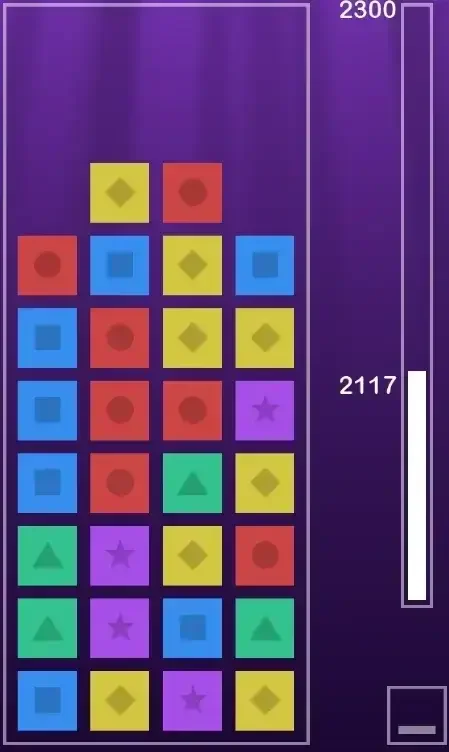
Example of the grid.
Retrieve the grid values from the screen
Let’s create a Python script to retrieve grid information from the screen using guirecognizer.
Create the bot configuration file
Install guirecognizerapp (this will also install guirecognizer)
(venv) $ pip install guirecognizerapp
Launch the application:
(venv) $ python -m guirecognizerapp
In parallel open https://otteretto.app/classic/. Play or skip the tutorial until the game with the grid starts.
In guirecognizerapp take a screenshot of the game: Capture -> Take Screenshot or shortcut Ctrl+Alt+T.
Then define the borders, which represent the absolute coordinates of the screen region that serve as a reference for all actions.
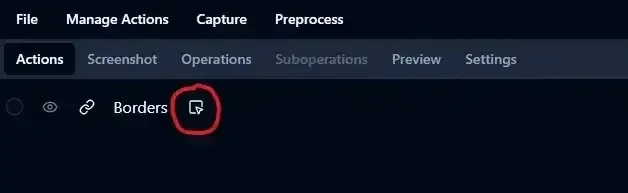
Click on the button to set the borders.
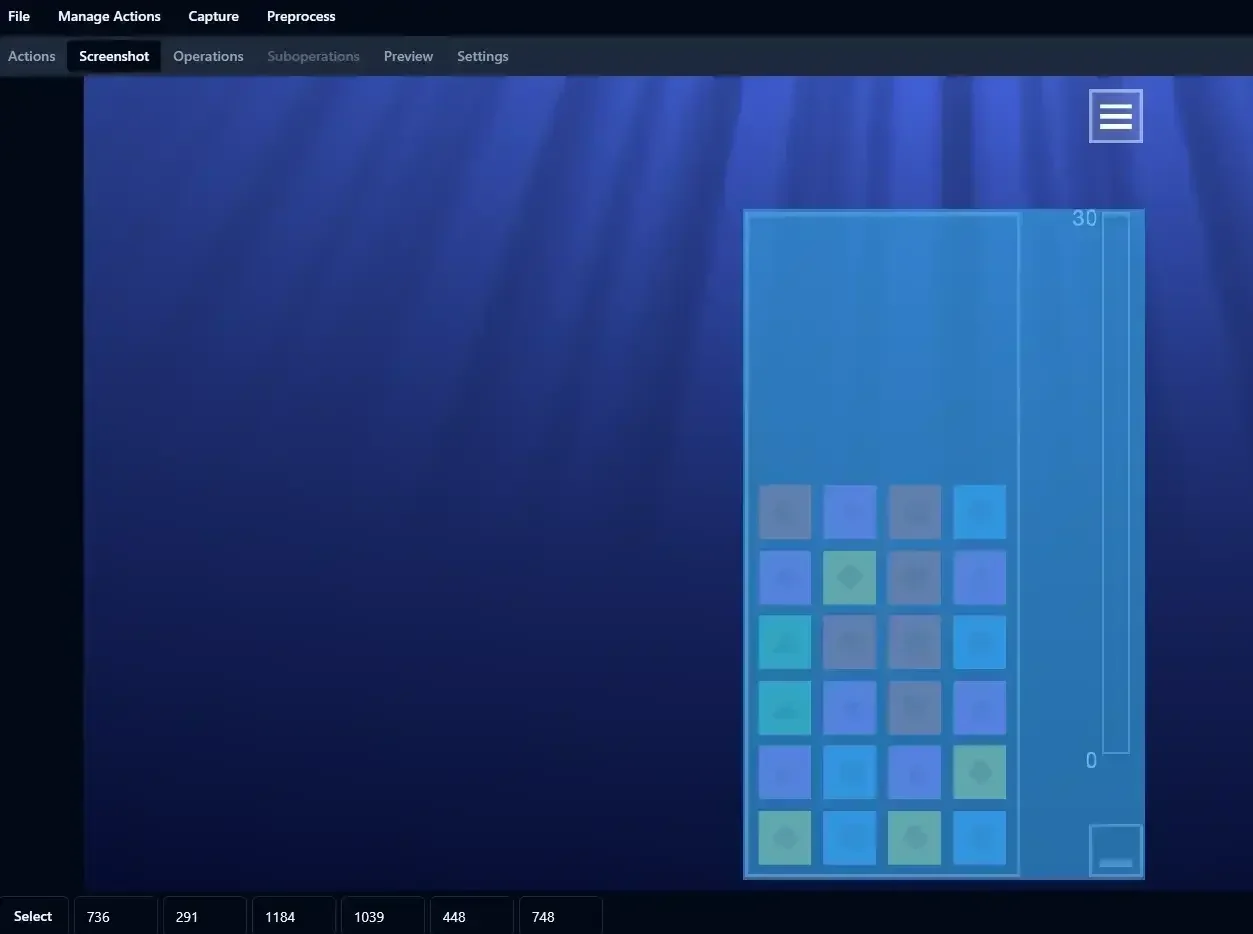
Select the screen portion. It’s also possible to select the whole screenshot.
To retrieve the grid information we need to know where the grid is. Let’s add three actions to retrieve the coordinates of the grid at the top-left, top-right, and bottom-left corners.
Add a Get Coordinates action: Manage Actions -> Add Action Get Coordinates. Name it topLeft and make the action selection. Select the point at the top left of the grid with some offset from the grid frame. Try to select a point near the top-left corner of where a colored block appears.
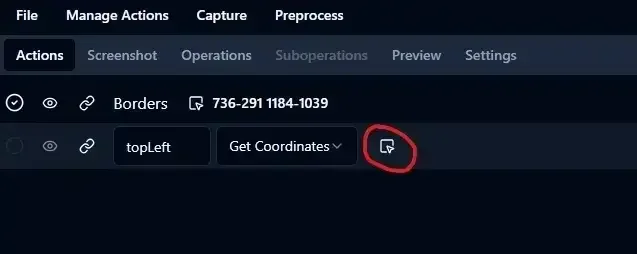
Click on the button to make the action selection.
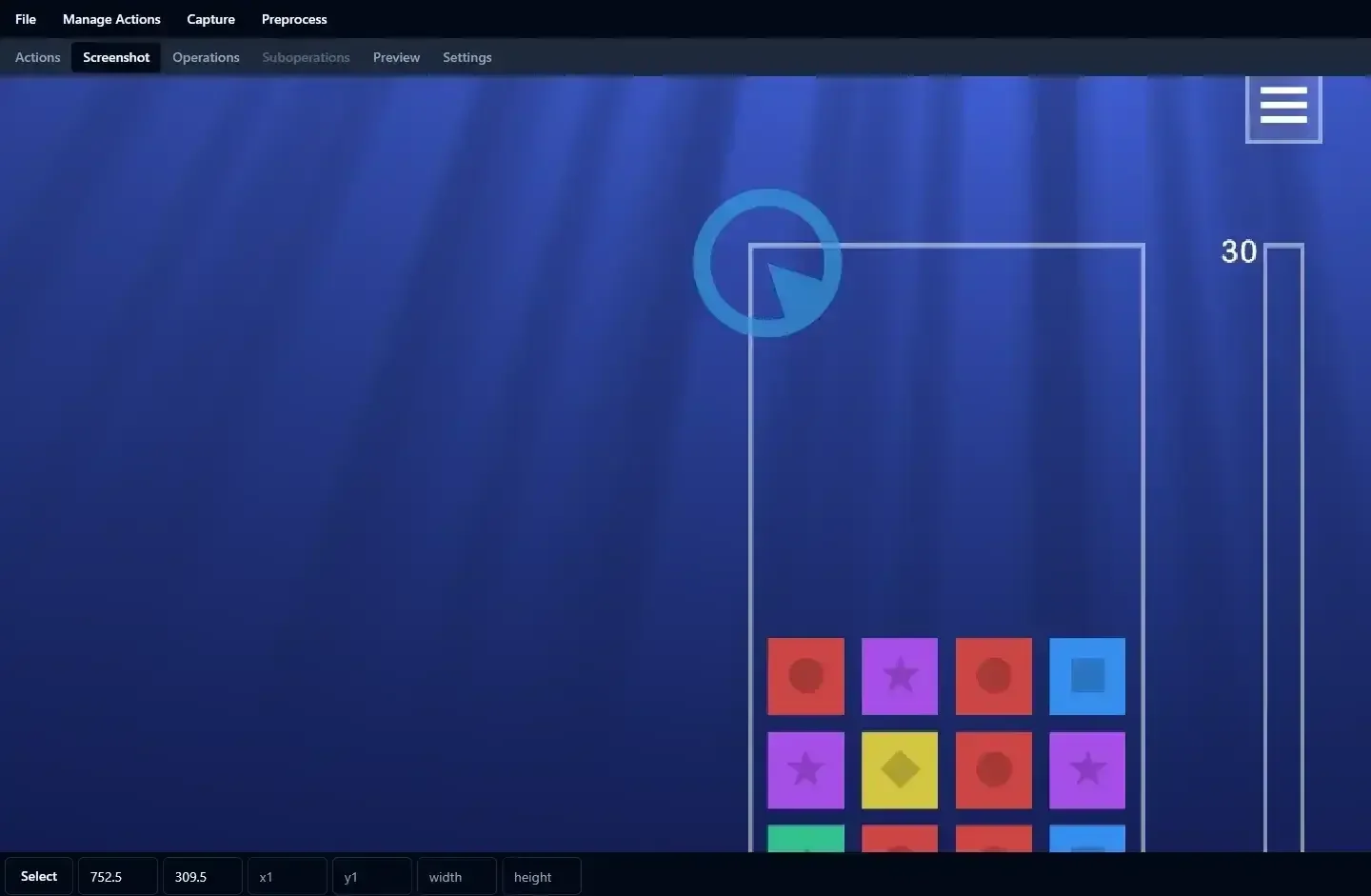
Select the point at the top left of the grid.
Do the same for the top-right and bottom-left corners, again selecting a point near where a colored block appears.
Save the file otterettoConfig.json in your project folder: File -> Save or Ctrl+S.
Loop through the grid blocks
Create a Python file bot.py. Use the guirecognizer class Recognizer to load the configuration file.
Check that the action called topLeft, defined earlier, is working correctly.
1from guirecognizer import Recognizer
2
3recognizer = Recognizer('otterettoConfig.json')
4topLeft = recognizer.executeCoordinates('topLeft')
5print('Top left coord:', topLeft)
Top left coord: (752, 310)
We are going to loop through each block of the grid and retrieve the pixel color. First, test retrieving the color of a specific pixel on the screen.
1from guirecognizer import ActionType, Recognizer
2
3recognizer = Recognizer('otterettoConfig.json')
4pixelColor = recognizer.executePixelColor(ActionType.PIXEL_COLOR, coord=(752, 310))
5print(pixelColor)
(42, 63, 148)
Here is the code that loops through the grid blocks and retrieves the color of each one.
 1from guirecognizer import ActionType, Recognizer
 2
 3recognizer = Recognizer('otterettoConfig.json')
 4width = 4
 5height = 10
 6topLeft = recognizer.executeCoordinates('topLeft')
 7topRight = recognizer.executeCoordinates('topRight')
 8bottomLeft = recognizer.executeCoordinates('bottomLeft')
 9xGap = abs(topRight[0] - topLeft[0]) / (width - 1)
10yGap = abs(bottomLeft[1] - topLeft[1]) / (height - 1)
11for x in range(width):
12  for y in range(height):
13    coord = (int(bottomLeft[0] + x * xGap), int(bottomLeft[1] - y * yGap))
14    pixelColor = recognizer.executePixelColor(ActionType.PIXEL_COLOR, coord=coord)
However, to identify a block, we need to know its color. Let’s extend the configuration file.
Identify the block colors
Using guirecognizerapp add a Is Same Pixel Color action for each of the five block types: Manage Actions -> Add Action Is Same Pixel Color. For each action, name it then select on the screenshot a pixel corresponding to the color of the block.
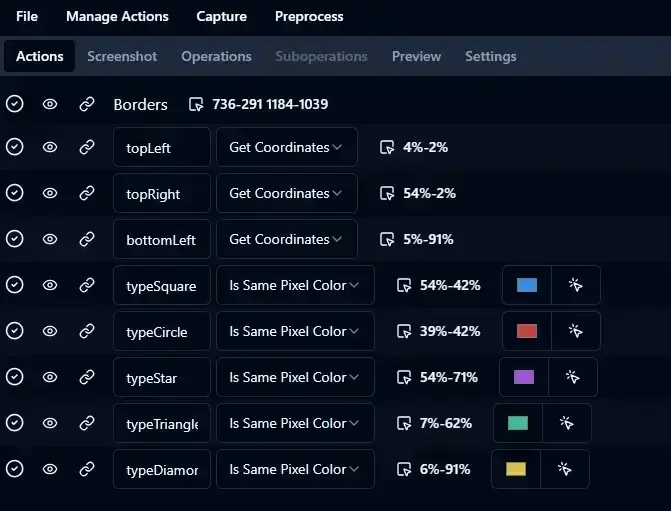
Add actions Is Same Pixel Color to identify block colors.
Now we can identify each block. The following code prints the full grid to the console. Make sure the window with the game is displayed. You may want to add a sleep command at the start of script if you need the time to display the game window.
 1from guirecognizer import ActionType, Recognizer
 2
 3recognizer = Recognizer('otterettoConfig.json')
 4width = 4
 5height = 10
 6topLeft = recognizer.executeCoordinates('topLeft')
 7topRight = recognizer.executeCoordinates('topRight')
 8bottomLeft = recognizer.executeCoordinates('bottomLeft')
 9xGap = abs(topRight[0] - topLeft[0]) / (width - 1)
10yGap = abs(bottomLeft[1] - topLeft[1]) / (height - 1)
11for y in reversed(range(height)):
12  line = ''
13  for x in range(width):
14    coord = (int(bottomLeft[0] + x * xGap), int(bottomLeft[1] - y * yGap))
15    color = recognizer.executePixelColor(ActionType.PIXEL_COLOR, coord=coord)
16    if recognizer.executeIsSamePixelColor('typeSquare', pixelColor=color):
17      line += ' 🟦'
18    elif recognizer.executeIsSamePixelColor('typeStar', pixelColor=color):
19      line += ' 🟪'
20    elif recognizer.executeIsSamePixelColor('typeCircle', pixelColor=color):
21      line += ' 🟥'
22    elif recognizer.executeIsSamePixelColor('typeTriangle', pixelColor=color):
23      line += ' 🟩'
24    elif recognizer.executeIsSamePixelColor('typeDiamond', pixelColor=color):
25      line += ' 🟨'
26    else:
27      line += '  '
28  print(line)
<empty>
<empty>
<empty>
<empty>
🟥 🟪 🟥 🟦
🟪 🟨 🟥 🟪
🟩 🟥 🟥 🟦
🟩 🟪 🟥 🟪
🟪 🟦 🟪 🟨
🟨 🟦 🟨 🟦
Improve performance
At this point, each call to recognizer.executePixelColor retrieves screen information by calling the operating system’s screen API. The whole loop takes around a second. Instead, retrieve the entire borders portion of the screen once and extract pixel colors directly from this image.
To retrieve the borders portion of the screen, call guirecognizer.Recognizer.getBordersImage().
Then pass the image as a parameter of recognizer.executePixelColor.
 1from guirecognizer import ActionType, Recognizer
 2
 3recognizer = Recognizer('otterettoConfig.json')
 4width = 4
 5height = 10
 6topLeft = recognizer.executeCoordinates('topLeft')
 7topRight = recognizer.executeCoordinates('topRight')
 8bottomLeft = recognizer.executeCoordinates('bottomLeft')
 9xGap = abs(topRight[0] - topLeft[0]) / (width - 1)
10yGap = abs(bottomLeft[1] - topLeft[1]) / (height - 1)
11bordersImage = recognizer.getBordersImage()
12for y in reversed(range(height)):
13  line = ''
14  for x in range(width):
15    coord = (int(bottomLeft[0] + x * xGap), int(bottomLeft[1] - y * yGap))
16    color = recognizer.executePixelColor(ActionType.PIXEL_COLOR, coord=coord, bordersImage=bordersImage)
17    if recognizer.executeIsSamePixelColor('typeSquare', pixelColor=color):
18      line += ' 🟦'
19    elif recognizer.executeIsSamePixelColor('typeStar', pixelColor=color):
20      line += ' 🟪'
21    elif recognizer.executeIsSamePixelColor('typeCircle', pixelColor=color):
22      line += ' 🟥'
23    elif recognizer.executeIsSamePixelColor('typeTriangle', pixelColor=color):
24      line += ' 🟩'
25    elif recognizer.executeIsSamePixelColor('typeDiamond', pixelColor=color):
26      line += ' 🟨'
27    else:
28      line += '  '
29  print(line)
With this approach, execution time drops to about 0.3s instead of 1s.
What’s next?
Now that you have access to the grid information, you can try to write a solver to find the best palindrome. guirecognizer does not help with this part.
You can try running a functional bot at
https://github.com/fab5code/guirecognizer/tree/main/examples/otteretto.
It uses MouseHelper.dragCoords() from the utility class MouseHelper to drag the mouse across blocks and select palindromes.